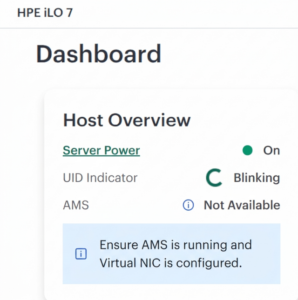
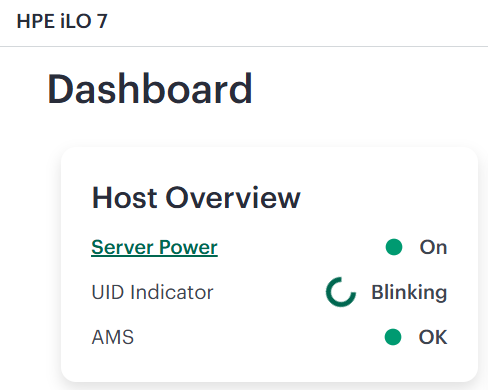
HPE Agentless Management Service (AMS) not running on an HPE Gen12 server with HPE iLO 7?
This guide explains why the issue occurs and how to configure communication among AMS, Smart Update Tools (SUT), and iLO.
Why This Happens
On HPE Gen12 servers with HPE iLO 7, the HPE Agentless Management Service uses the HPE iLO Virtual NIC (vNIC) to communicate with iLO. If iLO is configured in a high-security mode, AMS and SUT require an application account or valid iLO credentials. The application account is created once and stored securely in the system’s Trusted Platform Module (TPM).
Step 1: Check the AMS Service Status
Run the following command:
/etc/init.d/amsdv status
Example output showing that one AMS component is not running:
amsdv-smadvrev is not running amsdv-ahsdv is running amsdv-amsdv is running amsdv-smadv is running
Step 2: Check the AMS Application Account
Check whether an AMS application account is already stored:
/opt/amsdv/bin/amsdCli appaccount check
If no valid account is found, create one with an authorized iLO user:
App account for AMS is found in TPM. App token is valid and active.
Step 4: Check the SUT Status
Check whether Smart Update Tools can communicate with iLO:
sut -status
If SUT reports that iLO is configured in a high-security mode and requires an application account, create the SUT application account:
sut appaccount create -u <ilo-username> -p <ilo-password>
Expected confirmation:
App account successfully created in iLO and stored in TPM. Use the command sut appaccount delete to delete the app account from TPM.
Step 5: Verify the Final SUT Configuration
Run the status command once more:
sut -status
A healthy configuration should display the update manager, task state, staging directory, operating mode, polling interval, queued-update setting, and iLO security mode without the previous application-account warning.
System Update Manager……………….: Compute Ops Management Task Status………………………..: Bios:N/A; LocalStorage:N/A; Deploy:Idle Staging Directory…………………..: /tmp/stagingdirectory Baseline URI……………………….: None Baseline Version……………………: Waiting for staging Mode of Operation…………………..: autostage Polling Interval In Minutes………….: 5 Force Deploy……………………….: No Optional Components…………………: None EnableiLOQueuedUpdates………………: true iLO Security Mode…………………..: SecureStandard iLO CAC Smartcard Authentication……..: Off iLO CAC Strict Mode…………………: Off
Result
After the AMS and SUT application accounts have been created and validated, both tools can communicate with HPE iLO 7 over the Virtual NIC. The account information remains protected in the TPM, so this is usually a one-time configuration.
below is a comprehensive guide for setting up an HPE ProLiant server with ESXi. This includes HPE licenses, iLO configuration, UEFI BIOS settings, Compute Operations Manager (COM), firmware & driver updates, and registration in the HPE Support Portal. The settings described reflect my personal “best practices” and may not be suitable for every environment.
1. Ordering
Let’s start with the ordering process. I always recommend purchasing ProLiant servers with the iLO Advanced license, as it provides full remote access, email notifications, and much more. There are two options, as an example, here is:
BD505A: HPE iLO Advanced 1-server License with 3-year Support (paper license included in the box)
E6U64ABE: HPE iLO Advanced Electronic License with 3-year Support (license sent via email)
Both options are functionally and price-wise identical. The difference is that the paper license is pre-installed by HPE in factory-configured servers (CTO), while the electronic license must be manually entered later. I prefer the paper version for convenience, but the electronic version is less likely to be lost.
For Compute Ops Management (COM), the license is always delivered electronically, with two versions:
R7A12AAE: COM Standard, 5-year upfront ProLiant SaaS
S5E60AAE: COM Advanced, 5-year upfront ProLiant SaaS (includes iLO license, but both expire after 5 years)
The Advanced version already includes the iLO license mentioned above. But be careful, the iLO license for the server is normally valid forever. However, since the COM license is only valid for the specified period (in this case, 5 years), the iLO license for the combo also expires after 5 years, and at the same price. Everyone has to decide for themselves whether that makes sense; at least it doesn’t for me.
2. License Activation
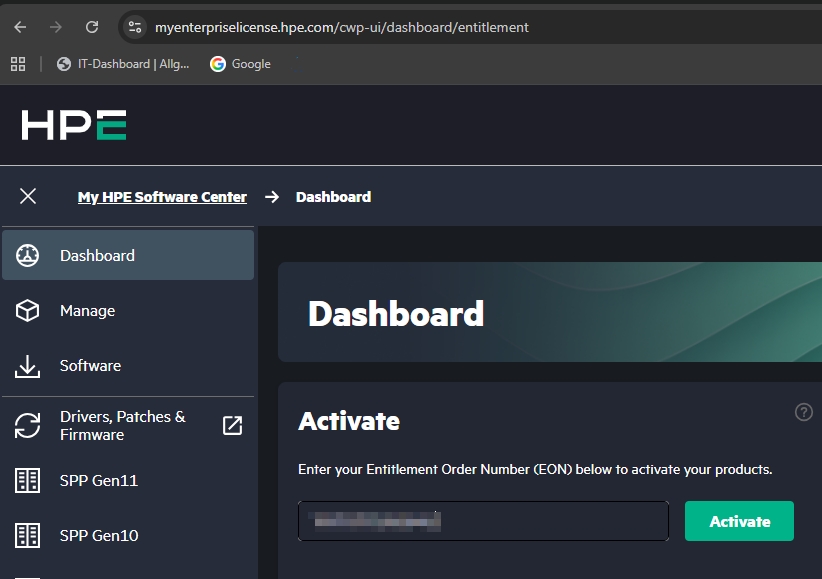
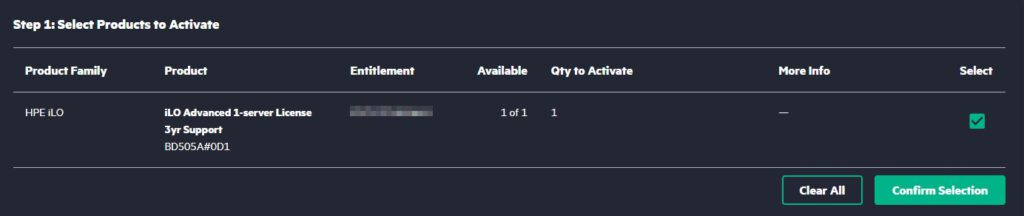
To assign licenses (iLO and COM) to your company and generate license keys, use the HPE License Portal. Log in, go to “Activate”, and enter the “Order Number” from your certificate or email.
We then receive a license key (iLO)
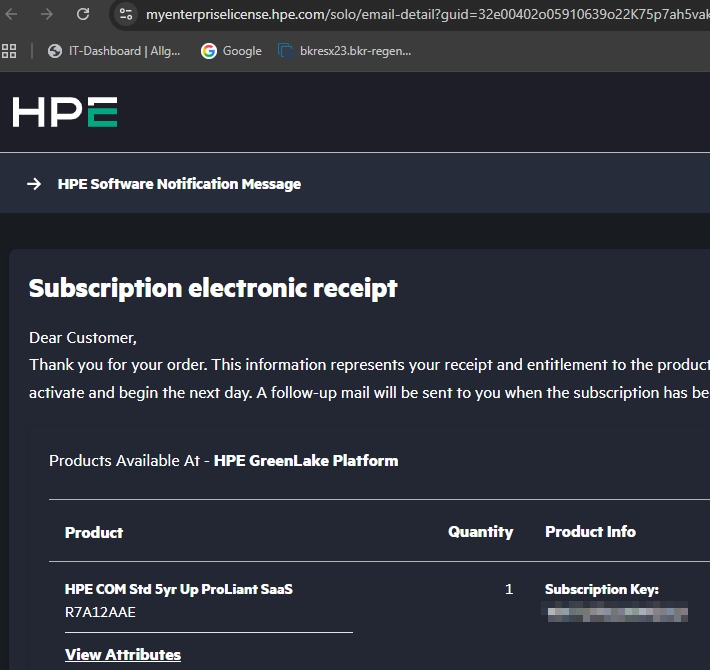
or subscription key (COM).
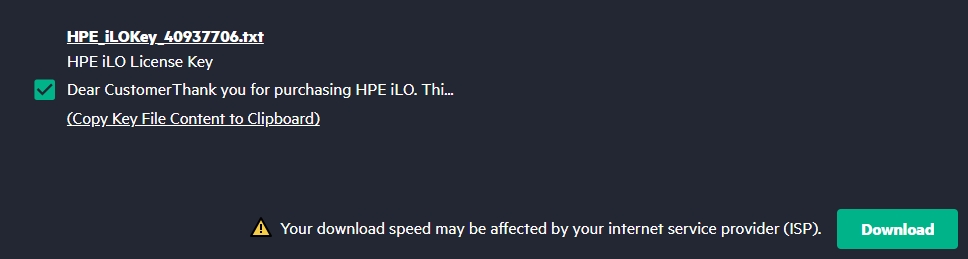
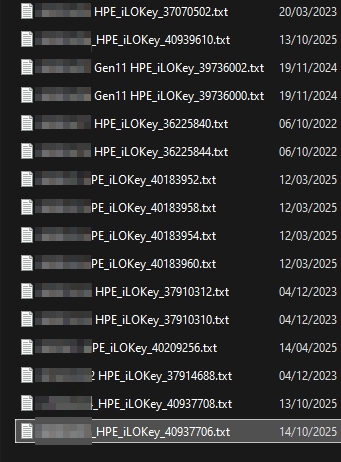
You’ll receive a license key (iLO) or subscription key (COM). I recommend storing these securely.
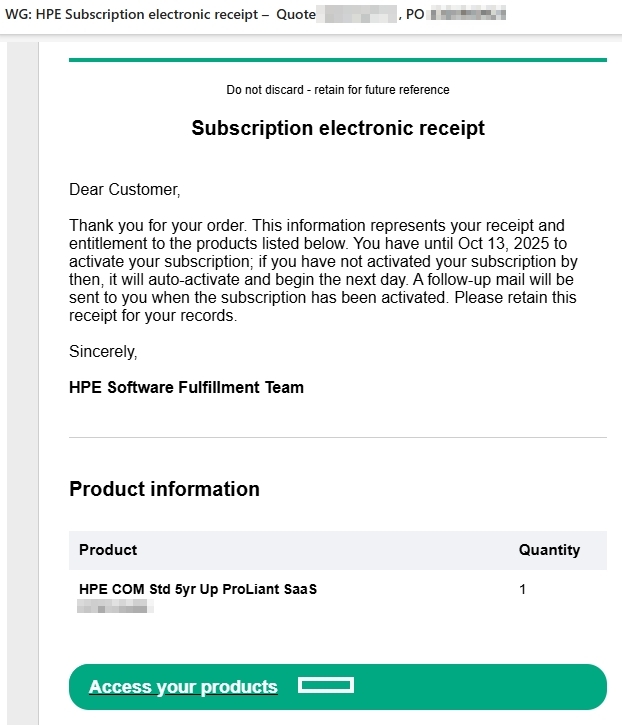
Since many people can’t find the email (it usually arrives at the purchaser’s email address), here’s an example:
3. iLO Configuration
After unpacking, the first thing to do is configure the iLO management. There are three connection options:
Connect the iLO port to LAN and let DHCP assign an IP
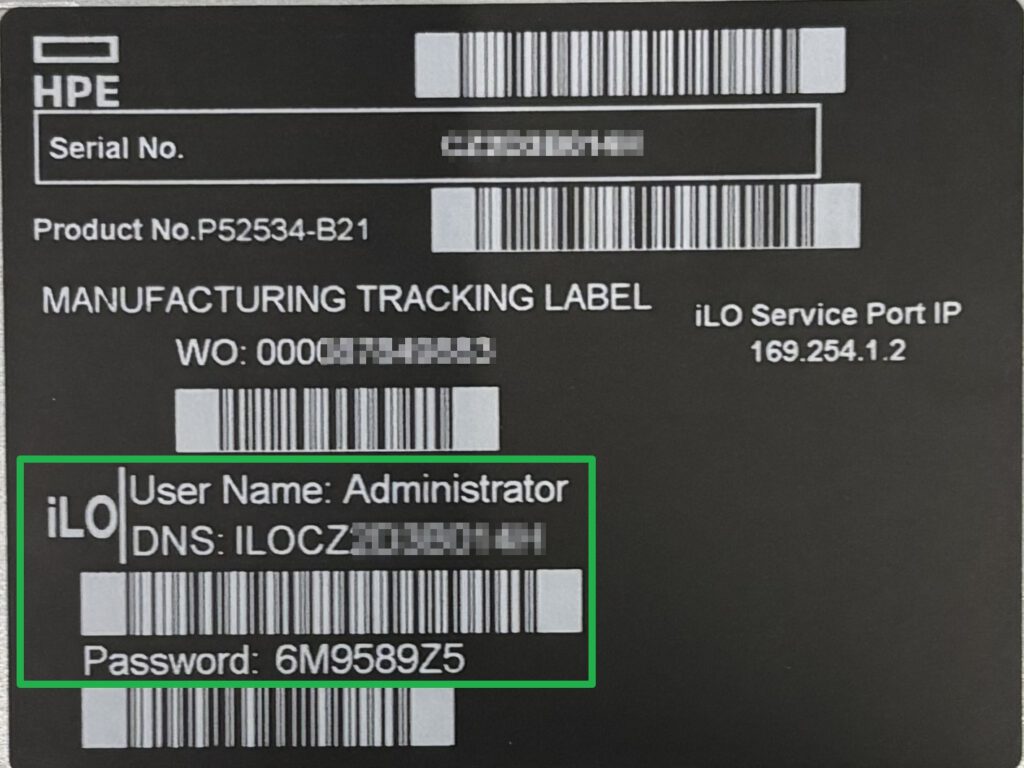
I use option 1 and connect via DNS name, using credentials from the server label.
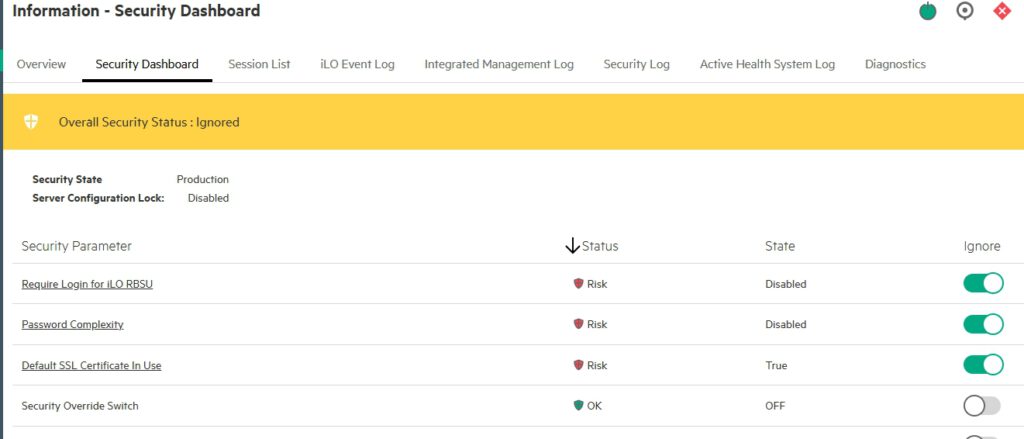
First, we try to get as many green fields as possible via the Security Dashboard in the top left corner without using the „Ignore“ buttons. The hyperlinks lead us to the settings:
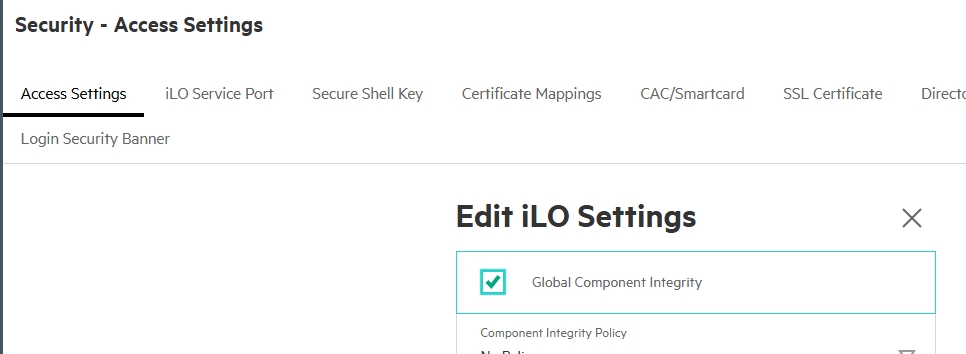
Activate „Global Component Integrity“:
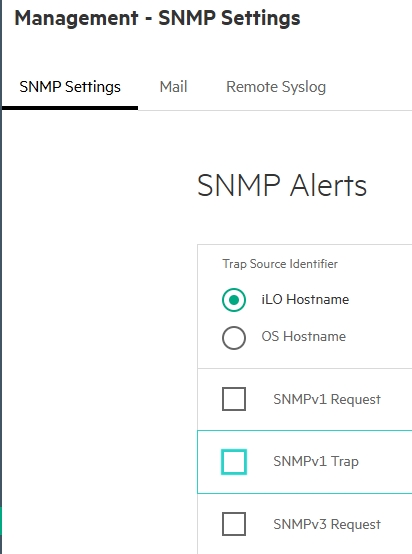
Then disable SNMP v1; unencrypted data transmission is really outdated.
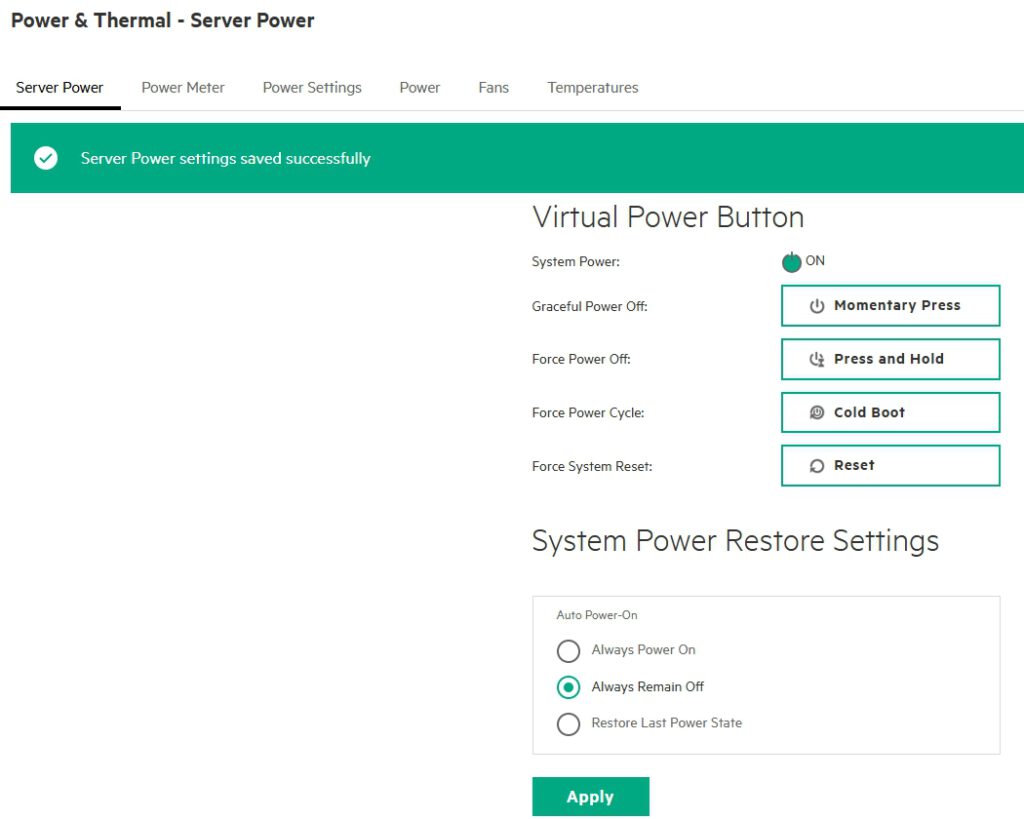
I set System Power to „Always Remain Off.“
In the event of a power failure, the servers have to be restarted in an orderly fashion and in the correct order. There are always exceptions, such as only one server or a physical domain controller.
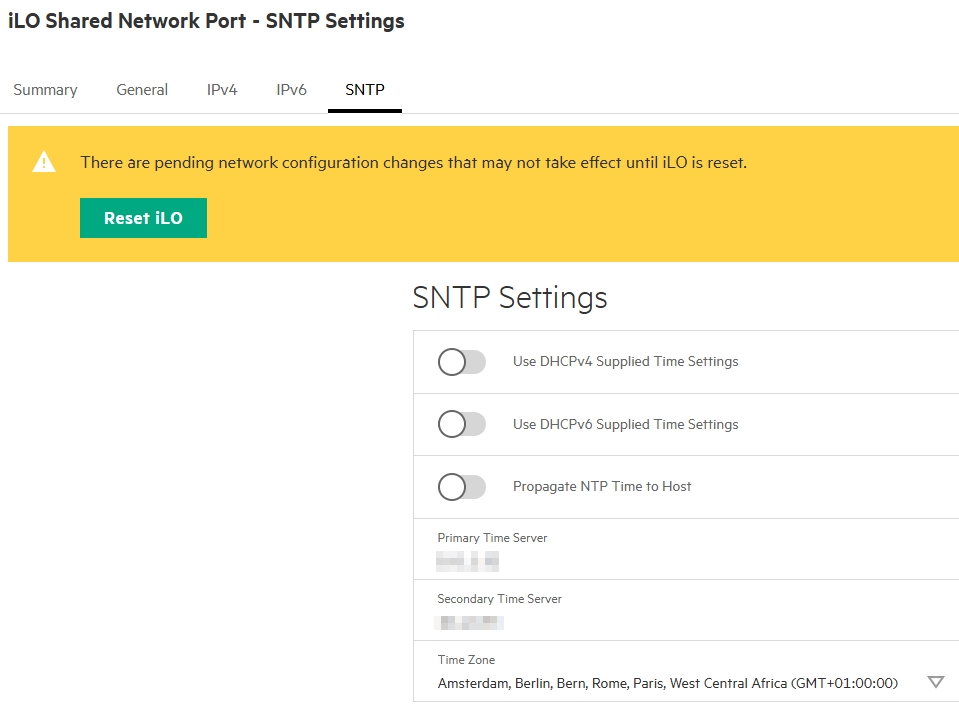
Under the network settings, we adjust the names, IP addresses, and also the time server. The time from the iLO is important because the secure connection to COM is established via certificates and these are not valid if the time is incorrect.
Please don’t forget to restart the iLO (not the server) to apply the settings. The button for this has been somewhat misleadingly labeled „Reset iLO“ for many years. It doesn’t reset the settings, but rather triggers a reboot of the iLO; „Reboot iLO“ would be more appropriate in my opinion.
After that, the „Secure Boot“ setting is still missing from the Security Dashboard, which we now need for almost all current operating systems. To do this, we need to access the UEFI BIOS by clicking on the remote console in the bottom left corner.
4. UEFI BIOS
To access the UEFI BIOS, press F9 when the notification appears at the bottom of the screen.
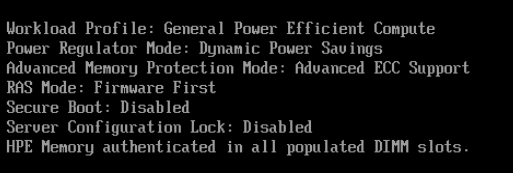
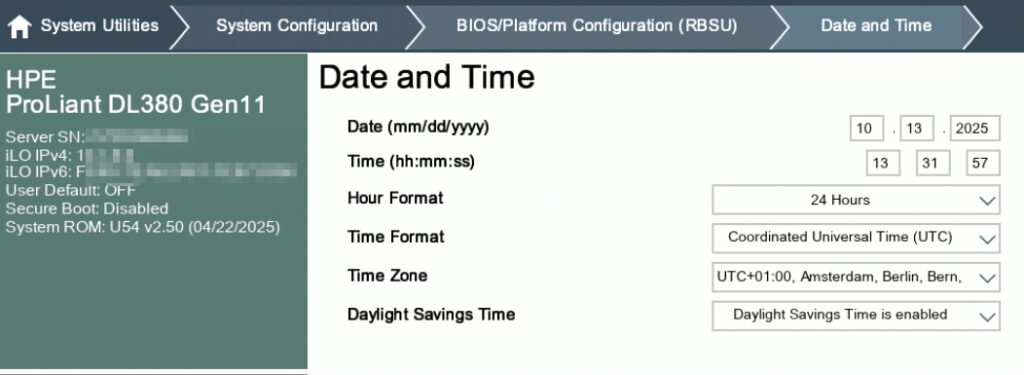
During boot, we see that „Workload Profile: General Power…“ and „Secure Boot: Disabled“ are enabled.
For whatever reason, the iLO’s time setting is not being applied to BIOS.
We set the „Workload Profile“ to match the application, here:
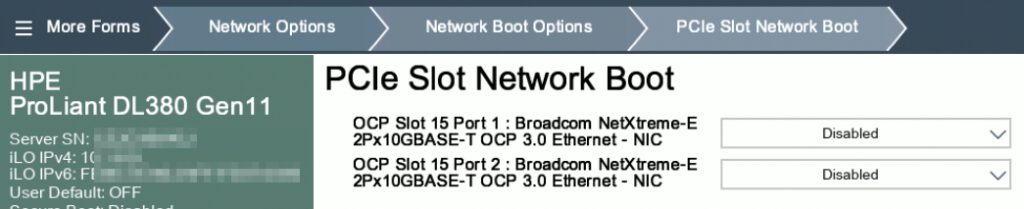
Since we don’t want network boot, we disable it:
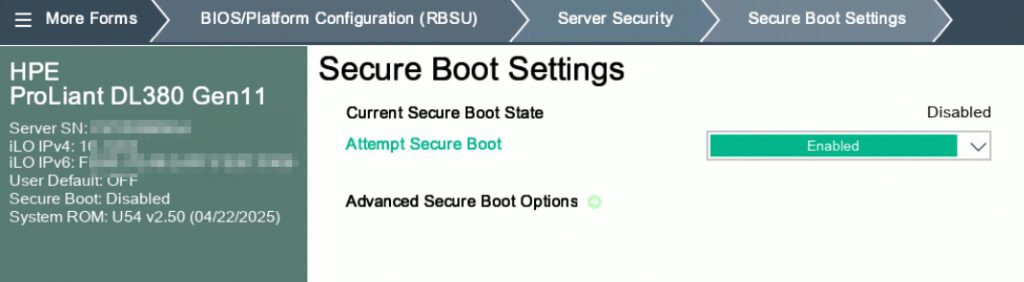
We’re still missing „Secure Boot,“ which will be found here:
Save and reboot.
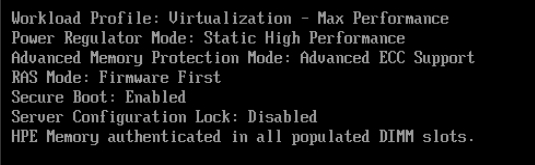
During the reboot, we check the correct profile settings and Secure Boot.
5. ESXi Installation
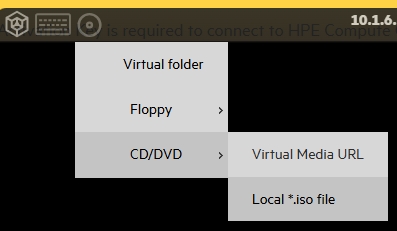
Using the iLO remote console (bottom left), we mount the ISO image of the operating system.
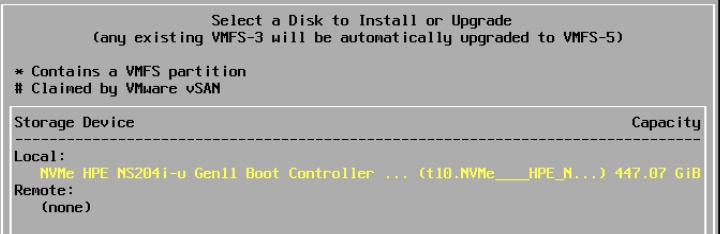
The server should then boot into the setup routine and find the installation disk.
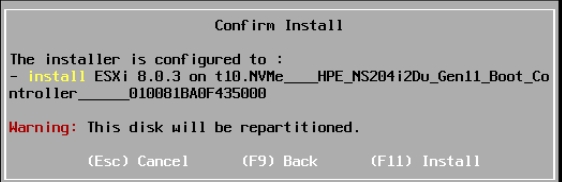
Format, install, and finish—nothing special so far.
Now that the installation is complete, we’ll make a few more settings.
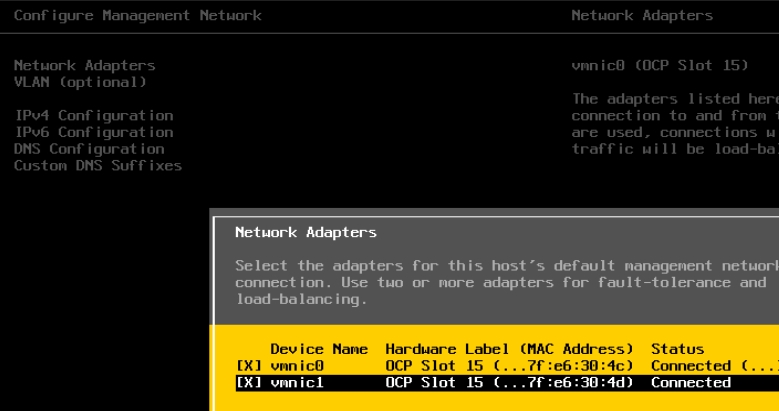
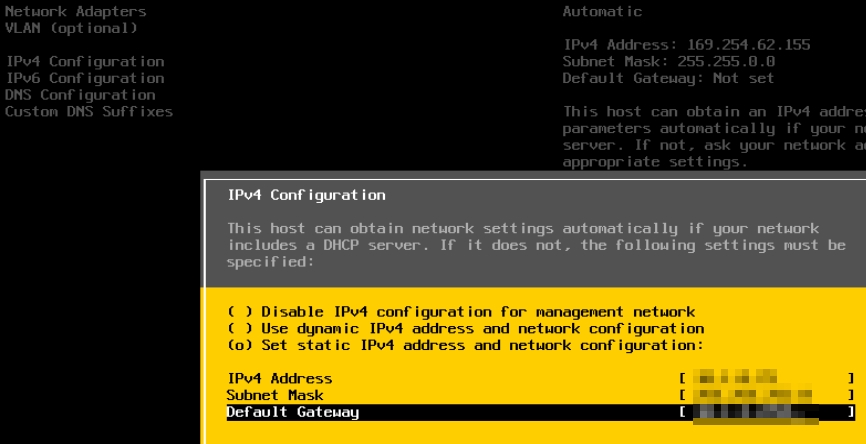
First, we enable both network ports for management.
Then we configure the IP addresses,
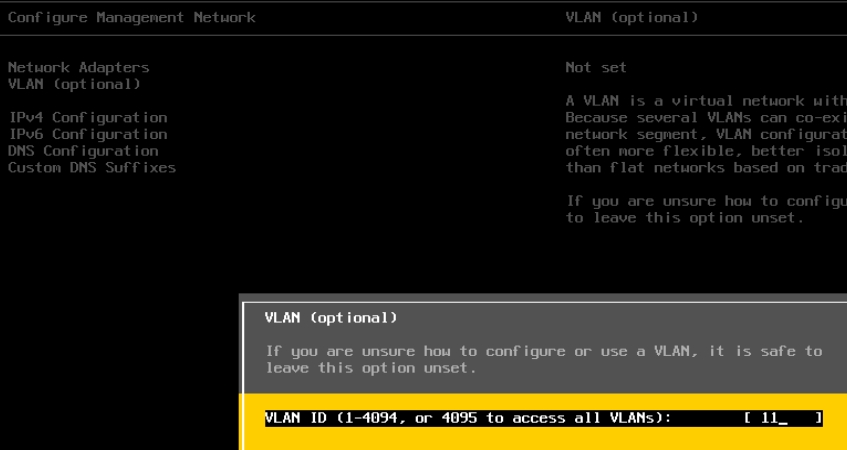
possibly a VLAN ID,
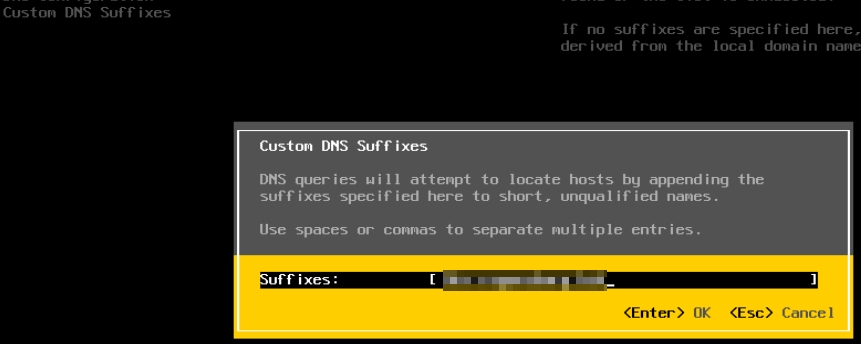
the DNS suffix, and
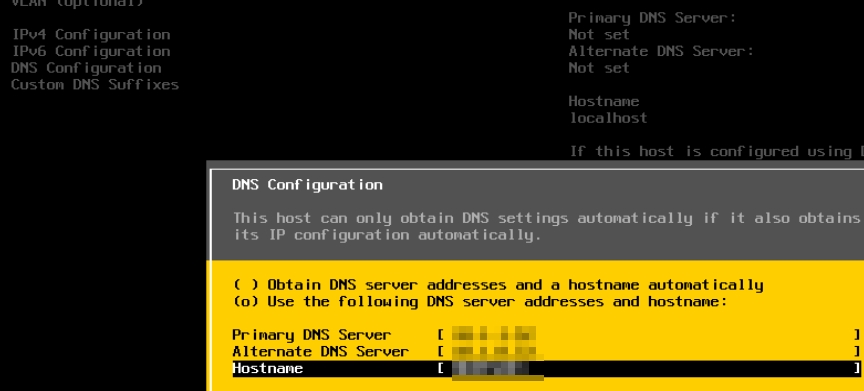
finally, DNS and the hostname.
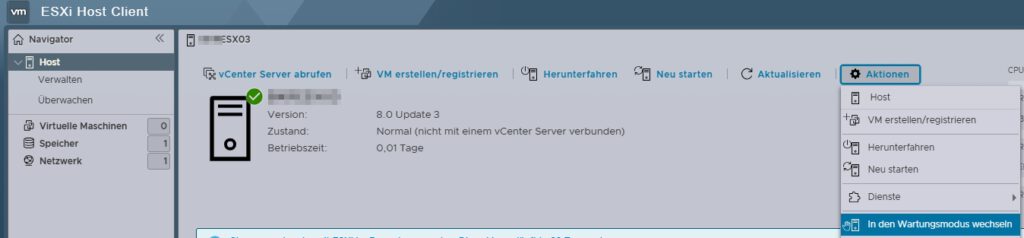
We should now be able to access the ESXi web-based management and enable maintenance mode there.
That’s all done, next we’ll focus on the COM.
6. HPE GreenLake Portal
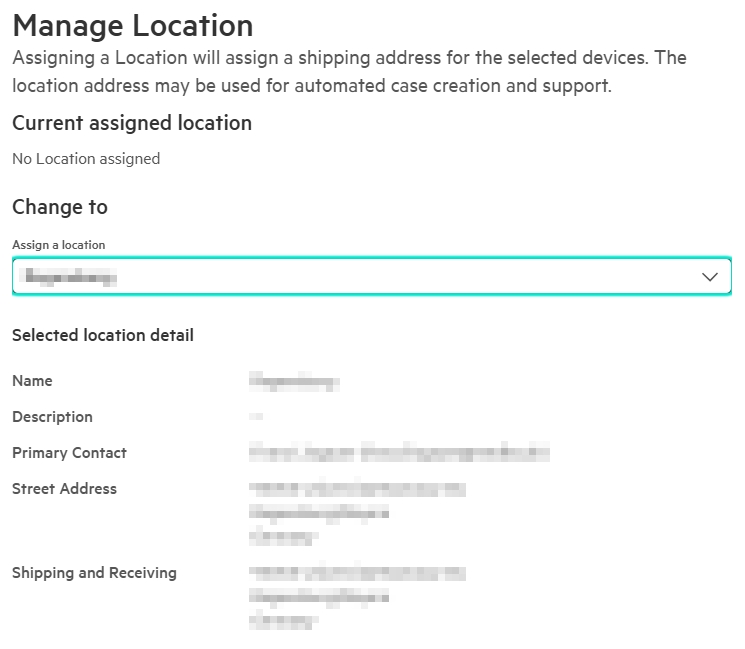
Access COM via the HPE GreenLake Portal. If there isn’t a workspace yet, we’ll create one. If it’s a new location, you should also define the location right away.
From the „Featured Services,“ we select the COM and add it to match our region.
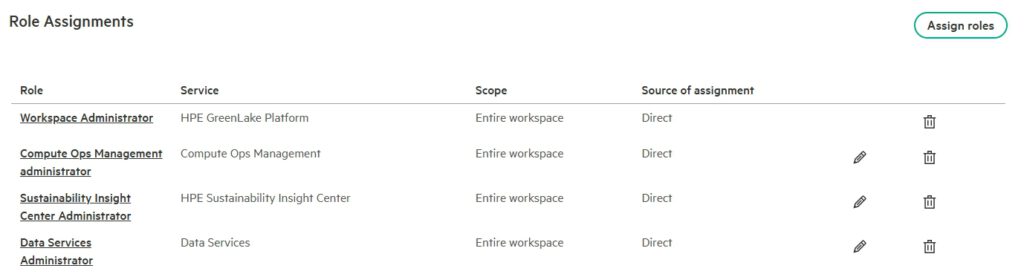
Now we need access rights to the COM, which we can get via „User Management“ on the right under „Quick Links.“ We click on the user and assign the necessary rights using „Assign Roles.“ For me, it looks like this:
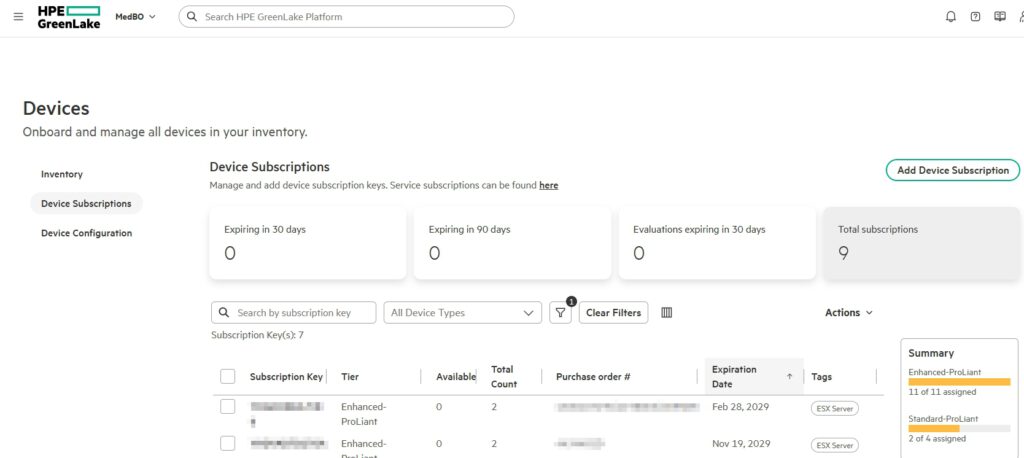
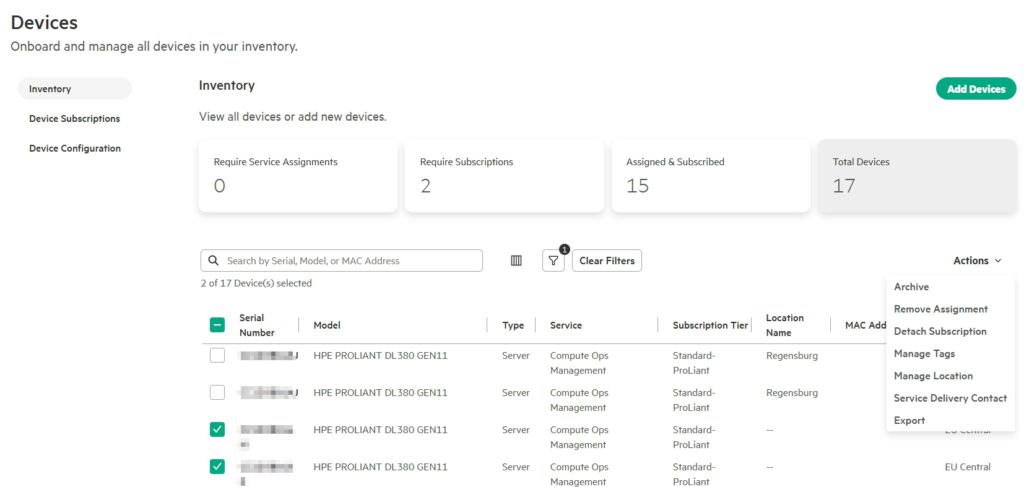
Now we need to add our COM license for the server (from the beginning). To do this, go to „Devices“ and select „Add Device Subscription.“ Alternatively, we can also assign a tag to the subscription so that we know what it’s intended for.
Next, we add the server; we can find the required serial and part numbers on the iLO homepage.
It’s also a good idea to assign tags, location, and service contact here. The subscription can be selected immediately or later in the COM.
7. Compute Ops Management (COM)
Now it’s time to link the server to our workspace.
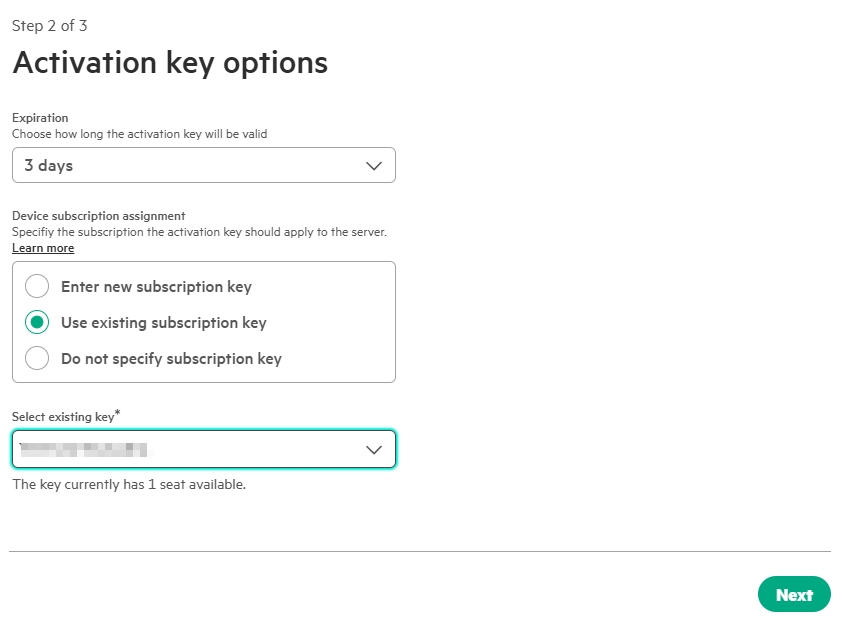
To do this, go to „Add server“ in COM.
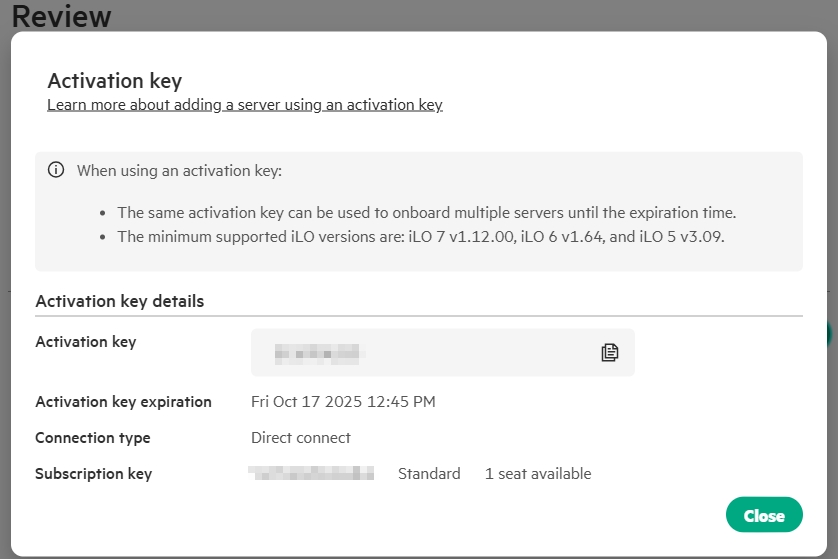
To get an „Activation Key“ for the server, select „Use existing…“ and select the key from the list above.
We now have 3 days to enter this key in iLO.
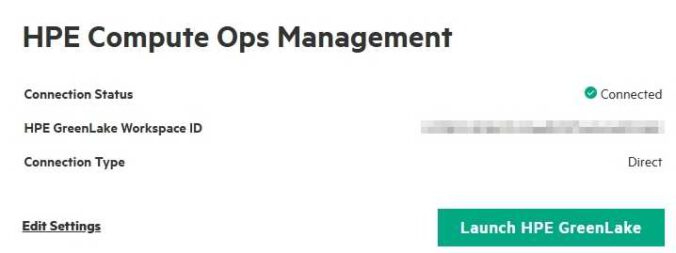
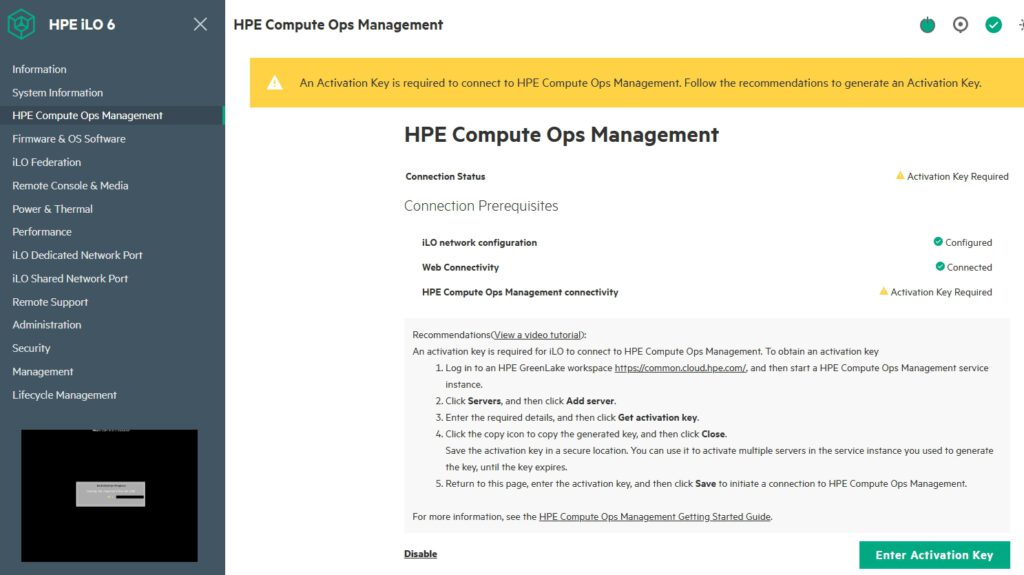
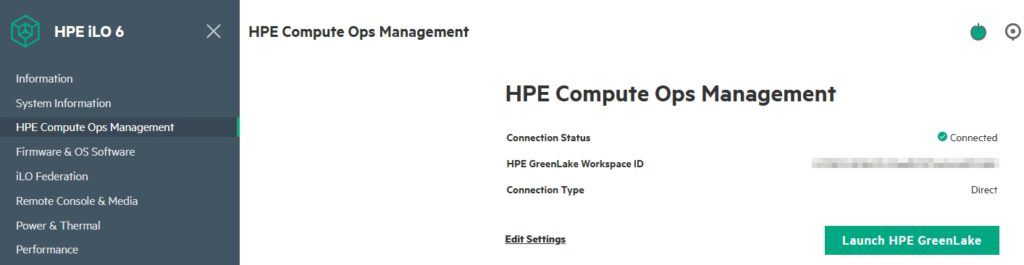
In my case, we can add 3 servers. Enter the copied key in the bottom right corner in iLO COM Section.
If successful, it should look like this after a short time:
The servers will now appear in the list, and discovery will begin.
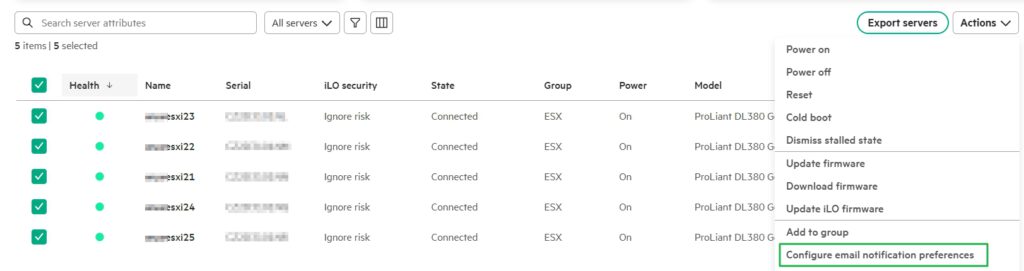
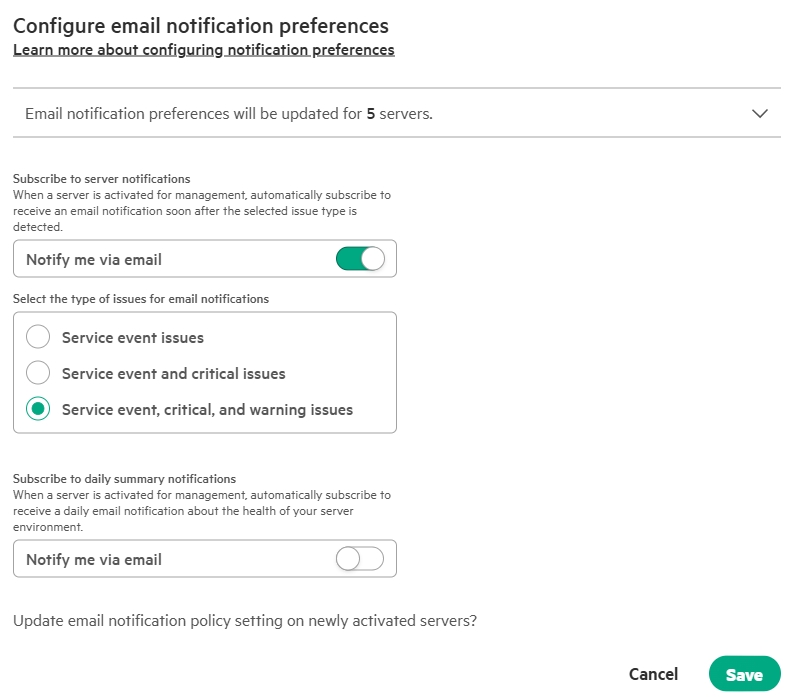
It’s also a good idea to set up an email notification should a problem arise:
Unfortunately, today, you can only select a daily summary, which is overkill for me. It’s a shame there isn’t a monthly summary; I’ve been wanting that as an improvement for a year.
So far, so good. Finally, the firmware and driver updates are still missing.
8. Firmware and Driver Update with COM
I’ve already explained the procedure in this Post. Here it is again for completeness.
In COM, we go to Servers.
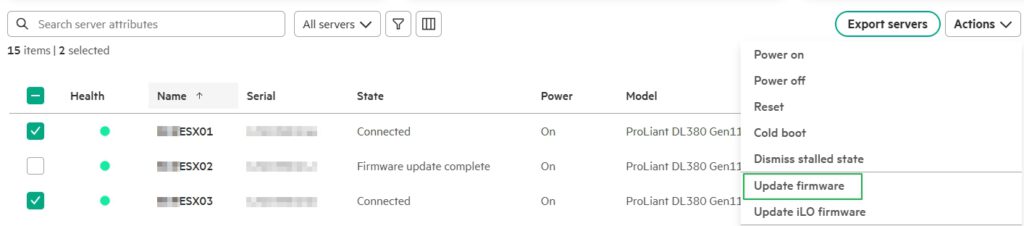
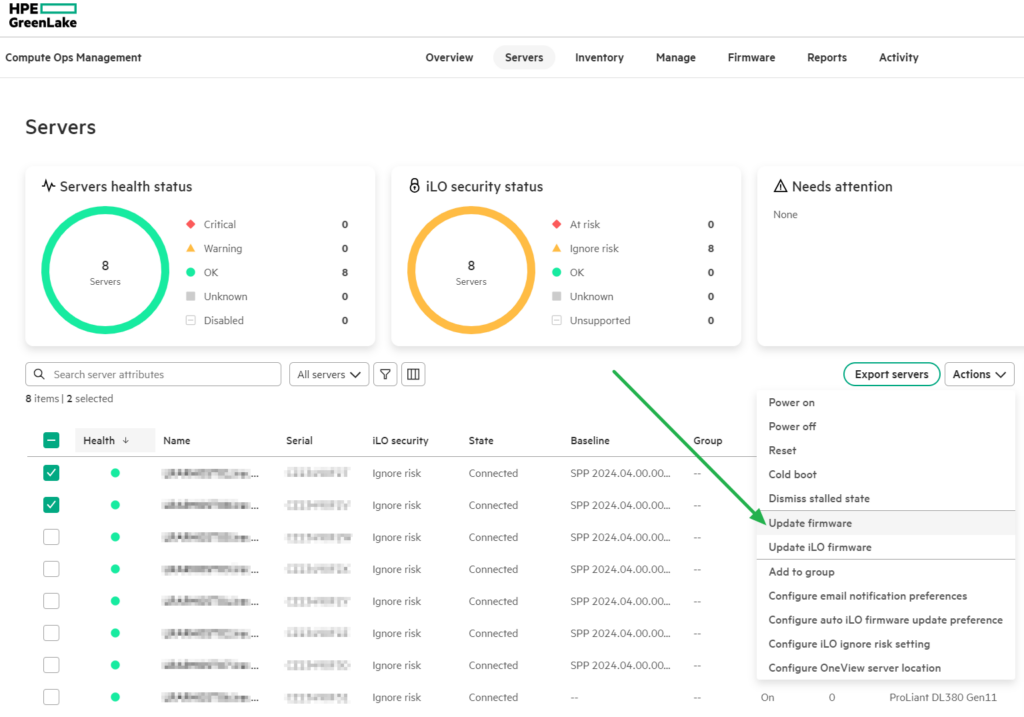
Then we select the required server(s) from the list of our servers and then under „Action,“ select „Update firmware.“
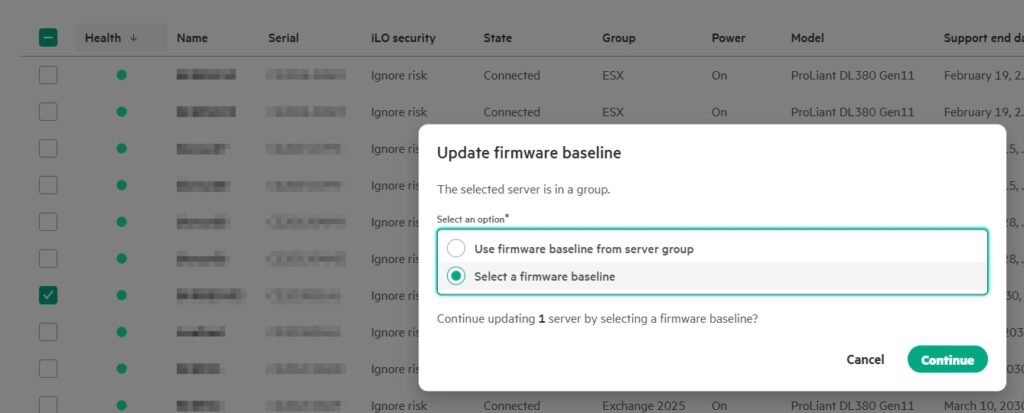
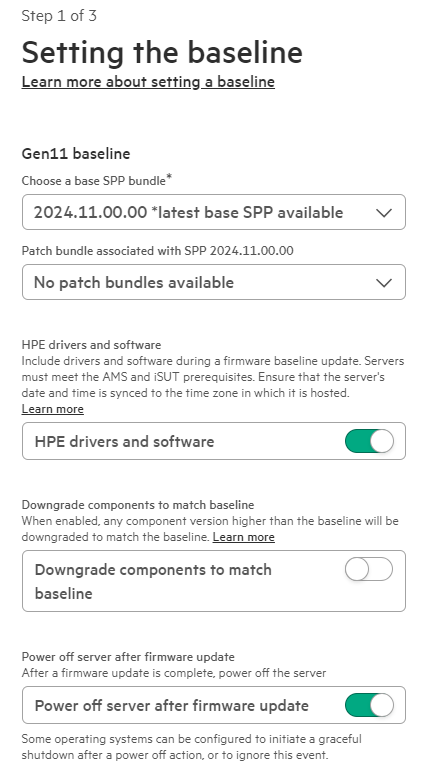
We select „Select a firmware baseline“ and
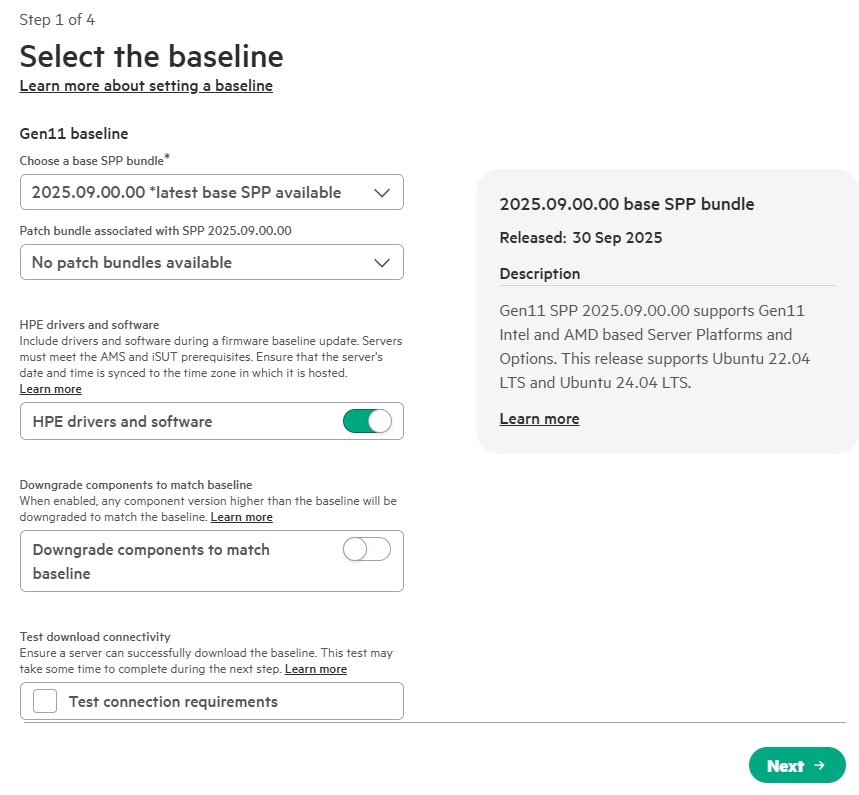
then the latest „Service Pack ProLiant“ (SPP). Also „HPE drivers and software,“ because the drivers also need to be updated. The necessary setting in the SUT (see link above) is now enabled by default.
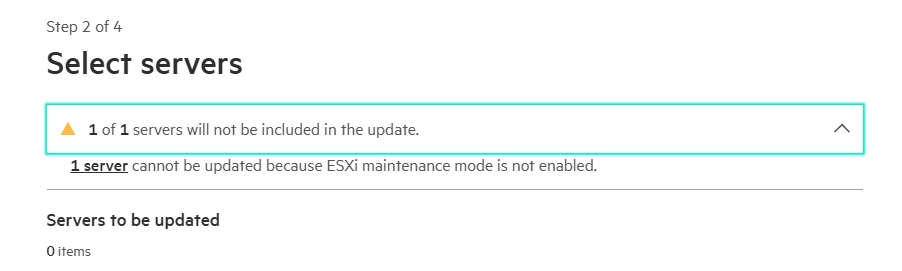
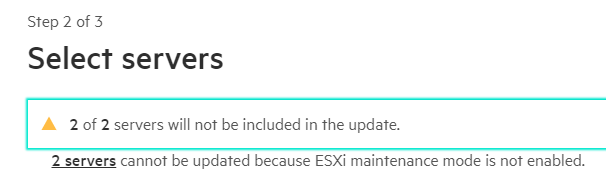
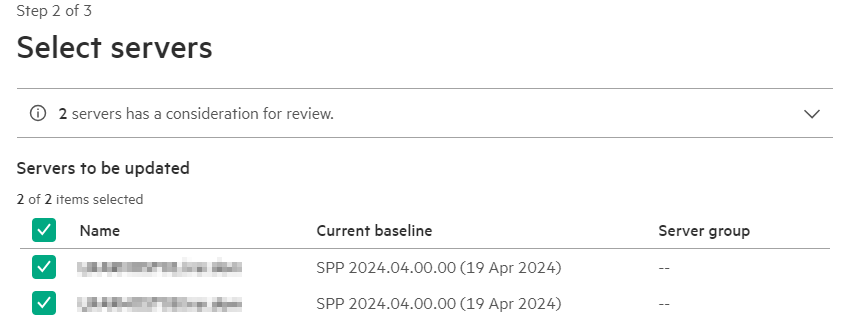
The selected servers are now checked to see if everything is correct, and then the update routine begins. If something is wrong, an error message like this appears:
Now COM begins only copying the required updates to the server’s iLO NVRAM. From there, the update is then performed locally. The SUT helper service in the operating system takes care of the driver updates, which retrieves them from the iLO.
Now it’s time for a ☕break, just wait and do something else. The server will restart automatically at the end, as ESXi is in maintenance mode.
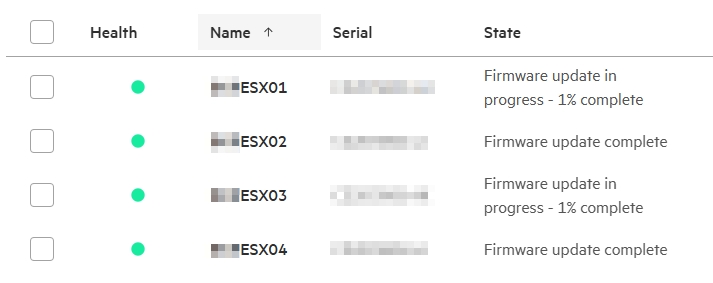
All updates are complete. This is what a finished environment might look like at the end.
Finally, we add the new servers to the HPE Support Portal.
8. HPE Support Portal
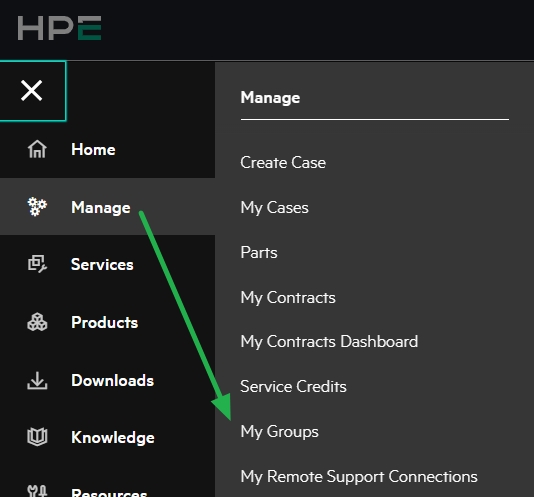
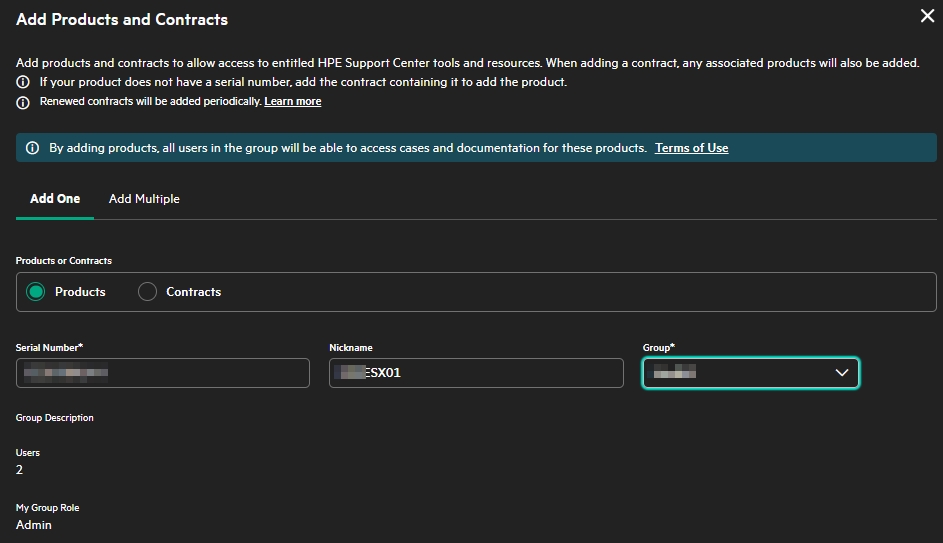
Support cases for hardware defects are now automatically opened via COM, and we can also have updates installed automatically on the servers. However, if you want to download an update from the Support Portal or open a case yourself, the device should be registered. To do this, go to the HPE Support page and create a support group the very first time.
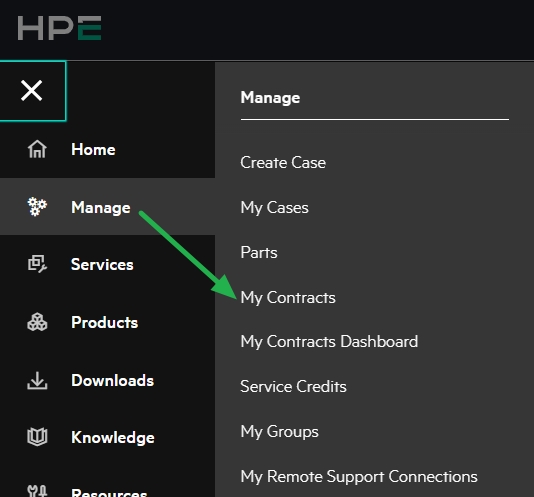
Within this group, we can add colleagues and enter their addresses. This has the advantage that colleagues can collaborate on a case. We then go to „My Contracts“
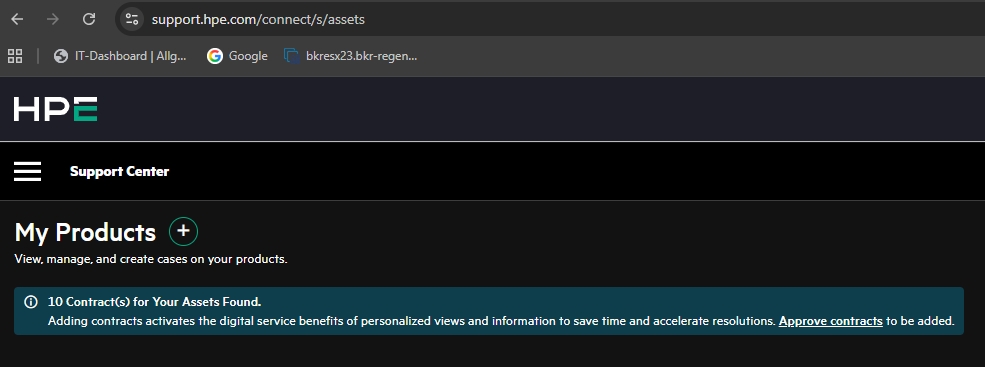
and add the Products.
This can be done by serial number or contract number.
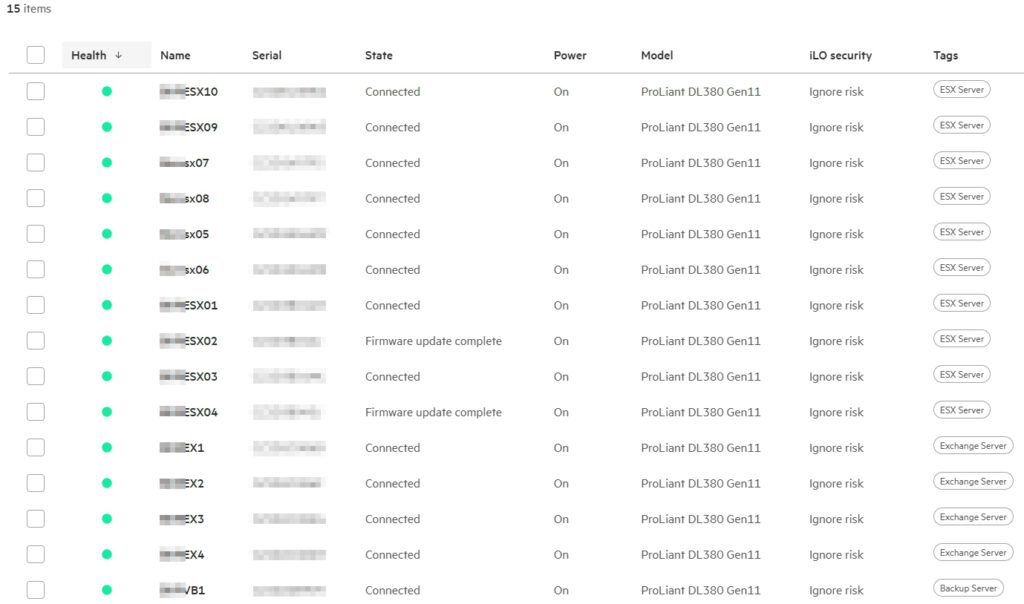
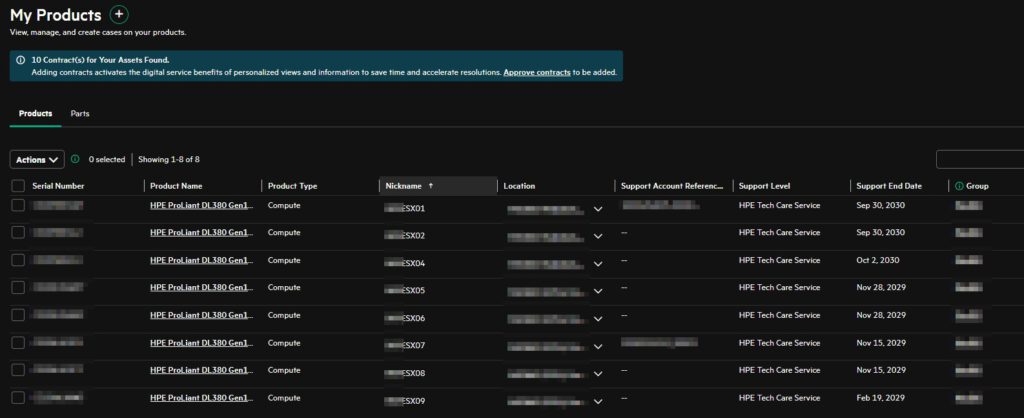
Once the devices have been added, it might look like this.
All licenses and devices are now registered and ready for productive use.
If you have a HPE ProLiant Gen10 Server, you will have an iLO 5 and find a new iLO USB Port on the Front.
Here I will show you how to use it:
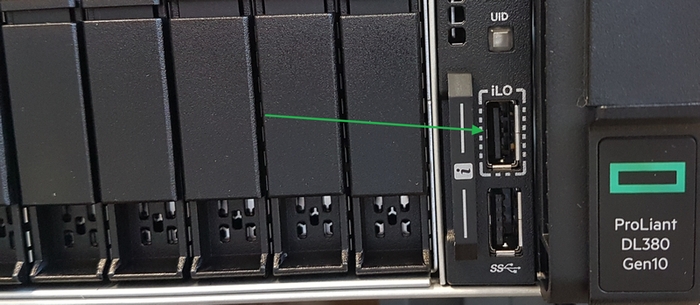
This is the new iLO 5 USB Service Port:
You can use it to:
• Download the Active Health System Log to a supported USB flash drive.
• Connect a client (such as a laptop) with a supported USB to Ethernet adapter to access the iLO web interface, remote console, CLI, iLO RESTful API, or scripts.
How to:
Got connection is a simple two Step Process:
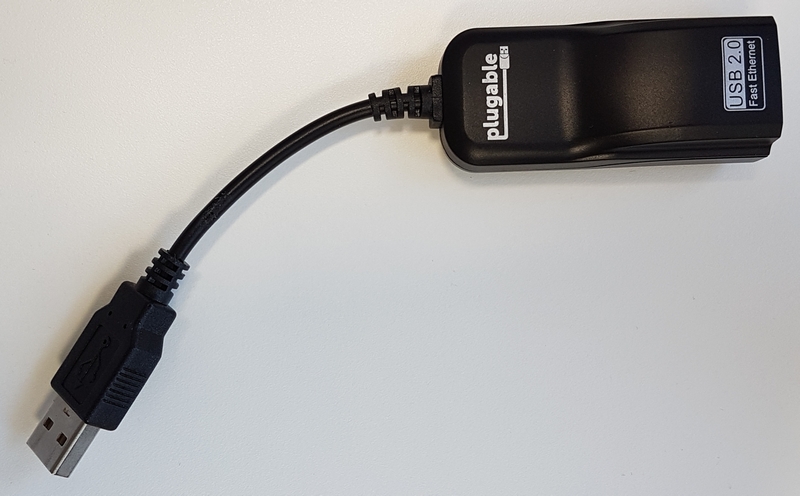
1. Use a supported USB to Ethernet adapter to connect a client to the Service Port (the USB port labeled iLO, on the front of the server).
The iLO Service Port supports USB Ethernet adapters that contain one of the following chips by ASIX Electronics Corporation: AX88772, AX88772A, AX88772B, AX88772C
Hewlett Packard Enterprise recommends the HPE USB to Ethernet Adapter with part number: Q7Y55A
(I am using this No-Name Adapter)
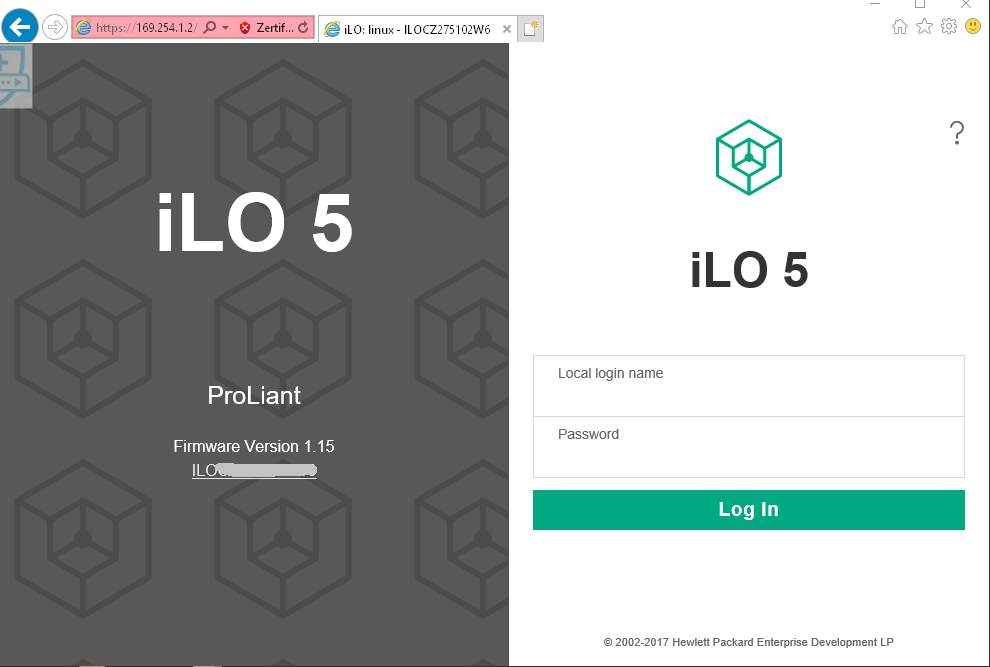
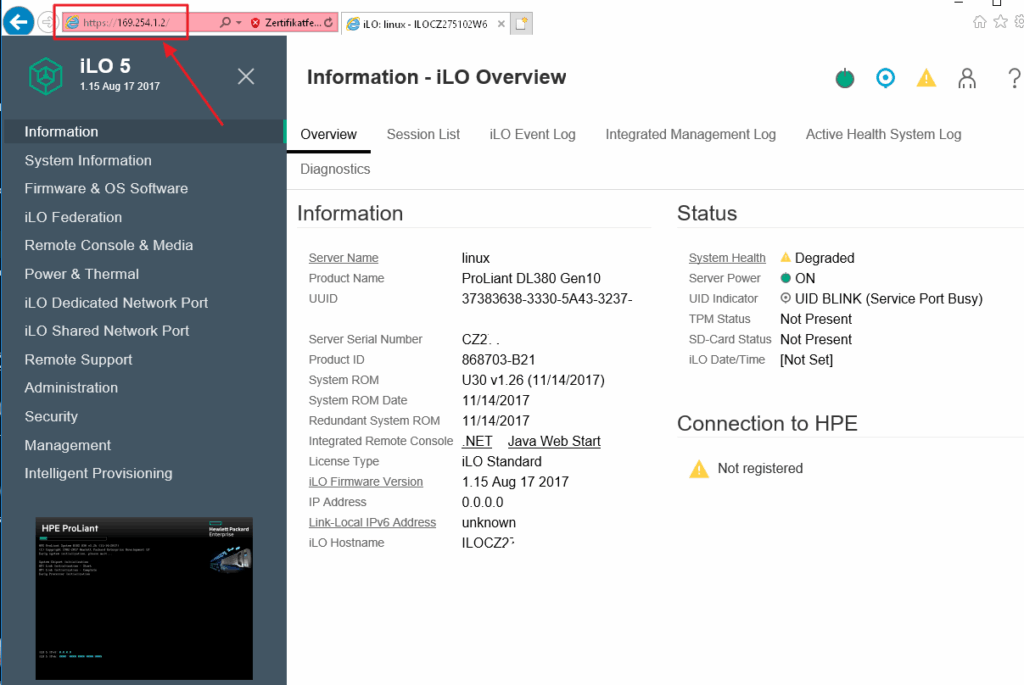
2. Connect to iLO through a browser by using this fixed IPv4 address: 169.254.1.2. (The Client will get a DHCP IP Address from the iLO.)
After the Login, we see the Standard iLO Menu:
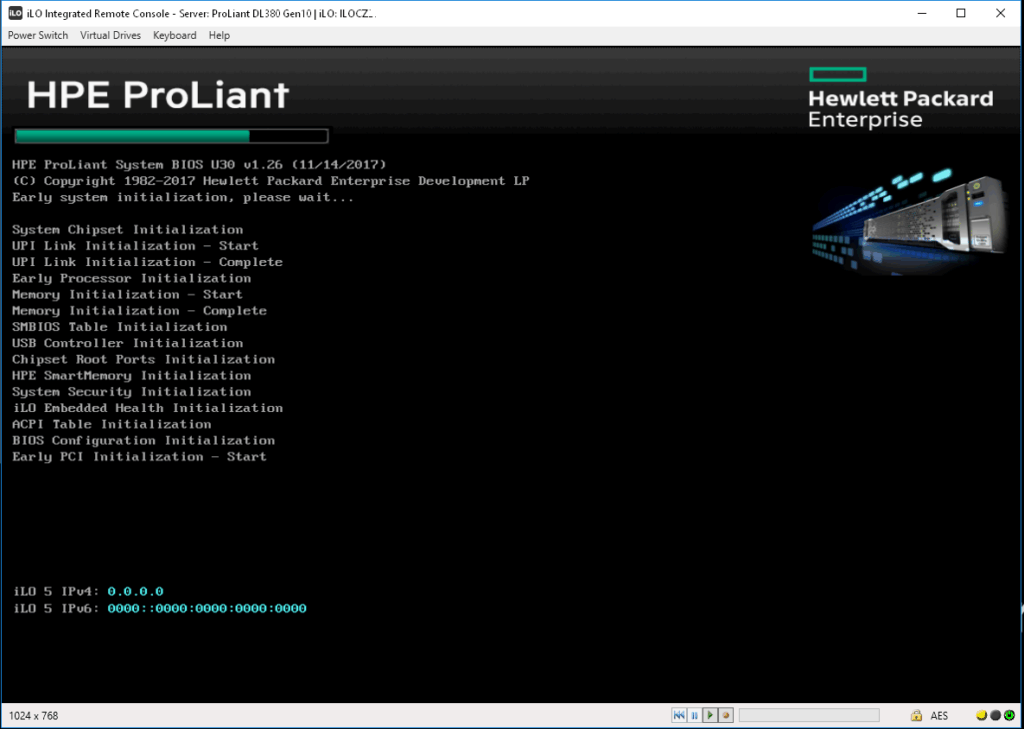
Also accessing the iLO Remote Console is possible:
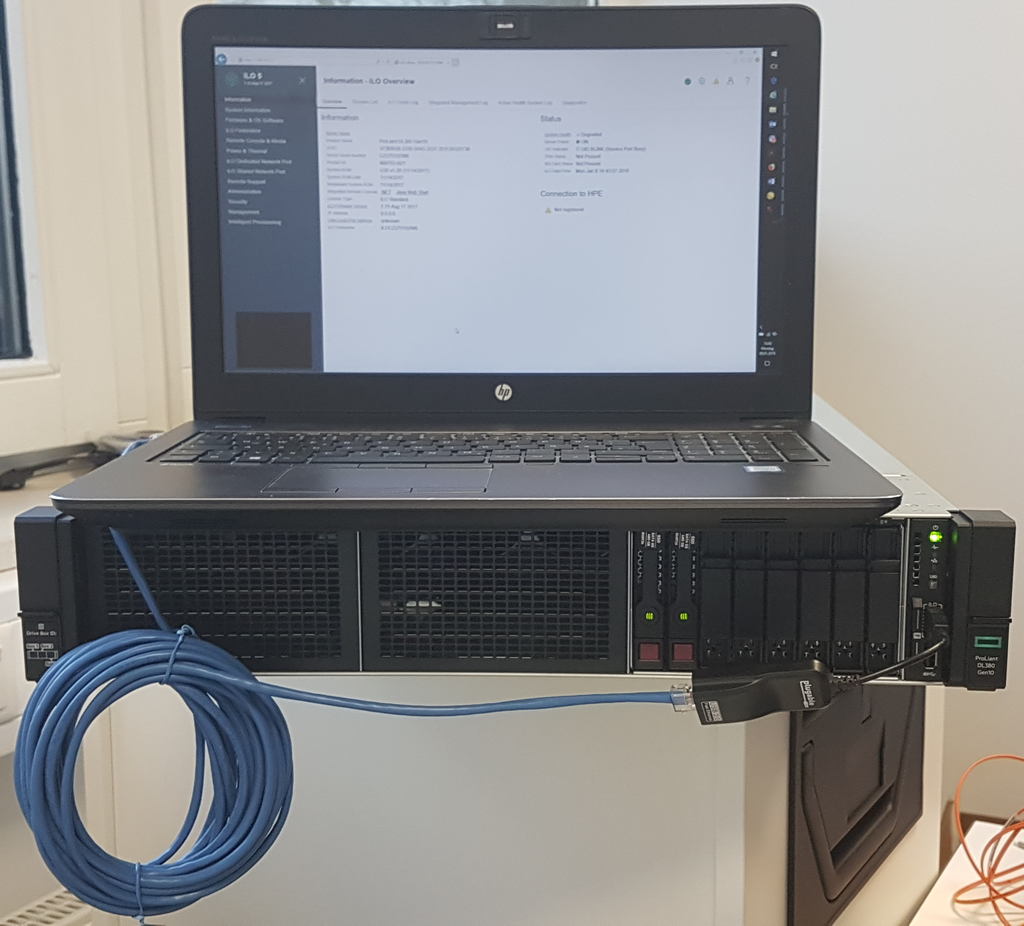
Here is my Laptop with attached ProLiant Server:
Why to use it:
I see two Main Scenarios.
Setup a new Server in the LAB In the past we connect the PC by the iLO LAN Port. However, there are to problems: – If we use our Company LAN, there is DHCP but then I cannot configure the Customer IP. – If we use the Customer IP, there is no DHCP and we need to attach Monitor/Keyboard first. Now I am able to patch it to my PC, simply connect to the fixed IP Address and can configure the Server iLO with Customer IP Address.
At Customer Site Most Customers are no longer using KVM Switches and Consoles, they use iLO for Remote Access. But if iLO connect is not possible (unknown IP, not cabled), they have to attach a local Monitor and Keyboard/Mouse. Now we can simple plug in the USB2LAN Adapter and connect a Laptop.
My Enhancement:
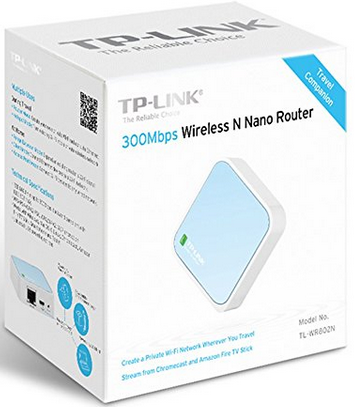
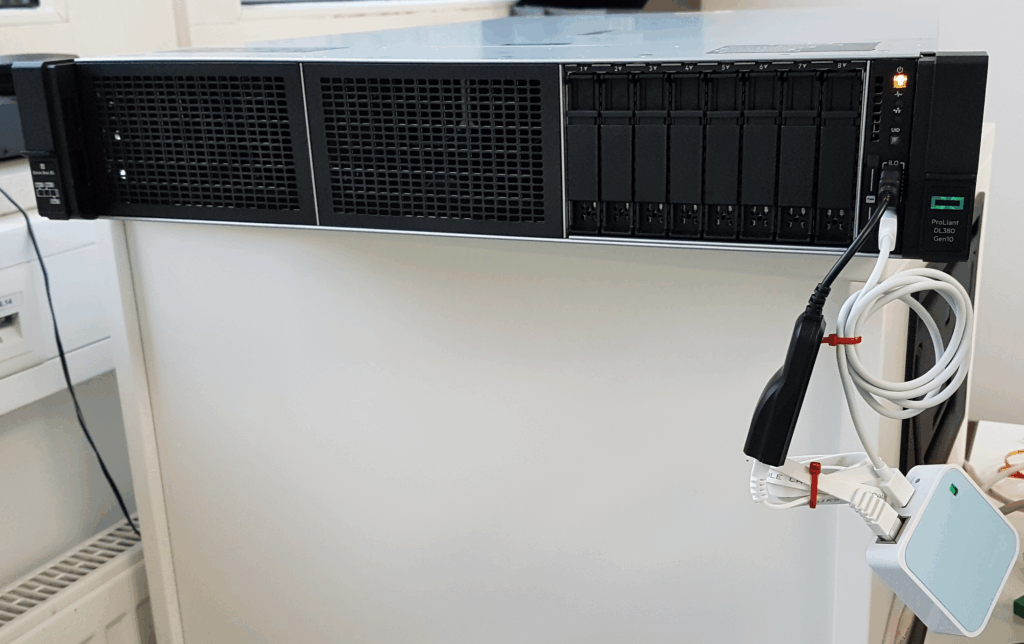
I try to connect the USB2LAN Adapter with a Nano Wi-Fi-Access Point.
Using this one:
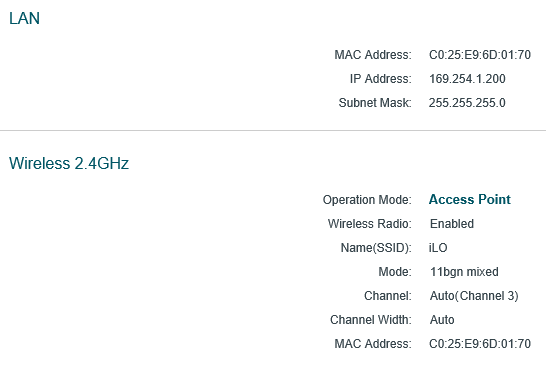
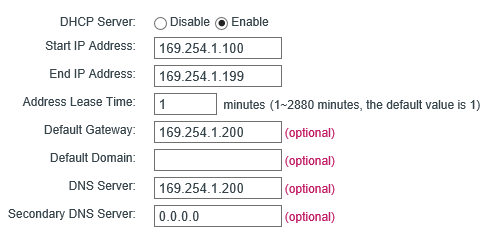
Here is the Nano Router config:
Now I am able to connect to the Server without any Cable by using Wi-Fi. In addition, it works from my LAB to the Workplace.
Here I will guide you to Install the HPE Service Pack for ProLiant (SPP) using Compute Ops Management (COM) on VMware ESX Server. (Will work similarly with Windows Server also.)
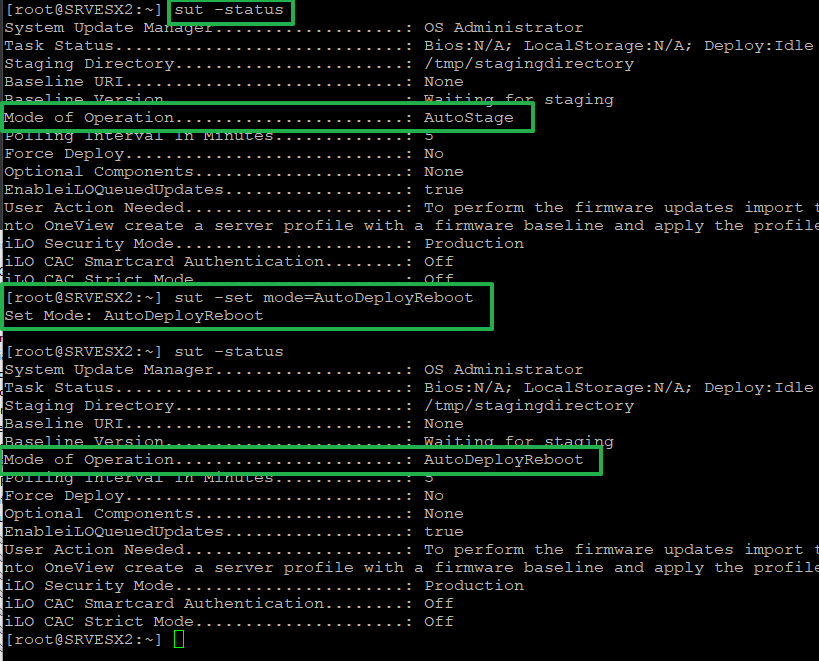
There is a new Note in the Manual: Compute Ops Management updates the iSUT mode from the default AutoStage mode to AutoDeploy mode after iSUT is installed or upgraded to version 2.9.3 or later. If a reboot is required during a firmware update, it will proceed regardless of the iSUT configuration.
Therefore, the following ESX settings are now only necessary for older versions:
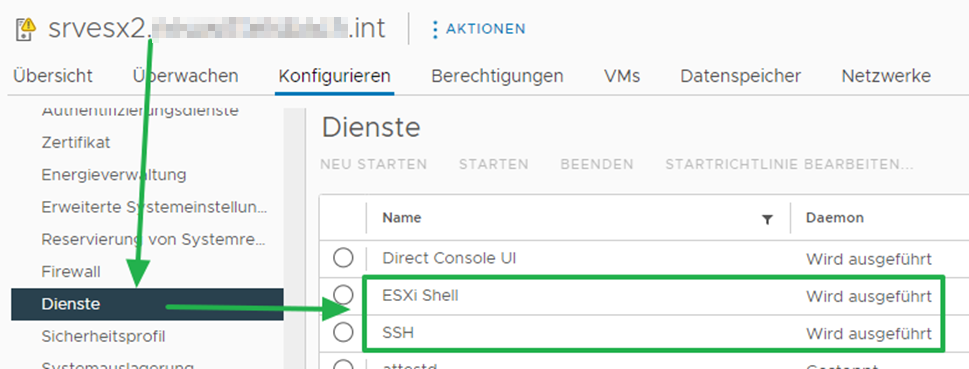
Start the ESX Shell and SSH on the ESX Server:
Optional: Set ESX into Maintenance Mode
Activate the HPE Software Update Tool (SUT): sut -set mode=AutoDeployReboot To Check: sut -status
To check above 2.9.3:
Set the iSUT enableiloqueuedupdates flag to true. Use the following iSUT command to set this flag: sut –set enableiloqueuedupdates=true
If you installed or updated the iSUT version or changed the mode, reset iLO or the server, and then wait for five minutes before initiating a firmware update through Compute Ops Management.
You only need to set this the first time for each server.
Now, it’s simple. Select the Server, you want to Update and Actions > Update Firmware: (It is currently a bit misleading, because this can also be used to update the drivers.)
Select your Setings:
In this case, the update will not be performed because we have also selected the drivers update, but for this the ESX server must be in maintenance mode.
Problem solved, now it works:
COM checks which firmware and possibly drivers are required and only these are transferred to the iLO board. This is different from before.
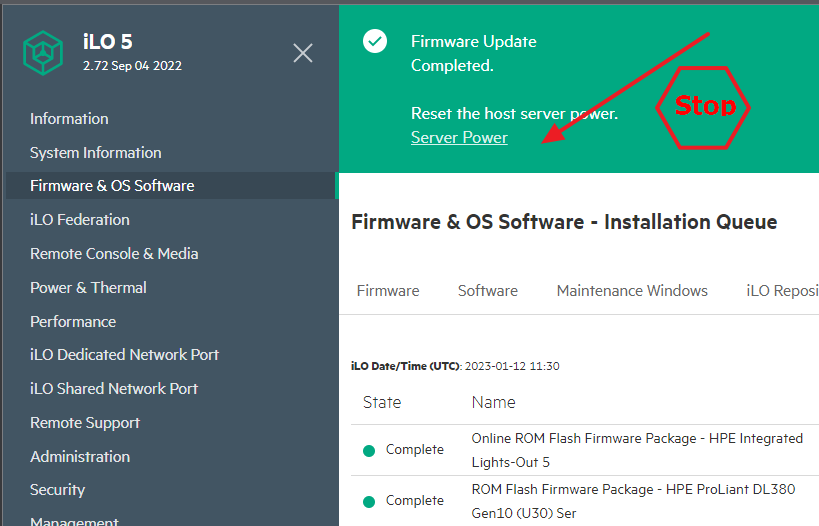
At one Point Firmware of the iLO itself is being Updated, and then iLO is offline for some minutes.
Attention: Do not click here! Lay back and Drink your ☕.
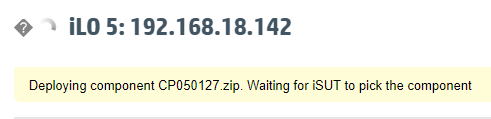
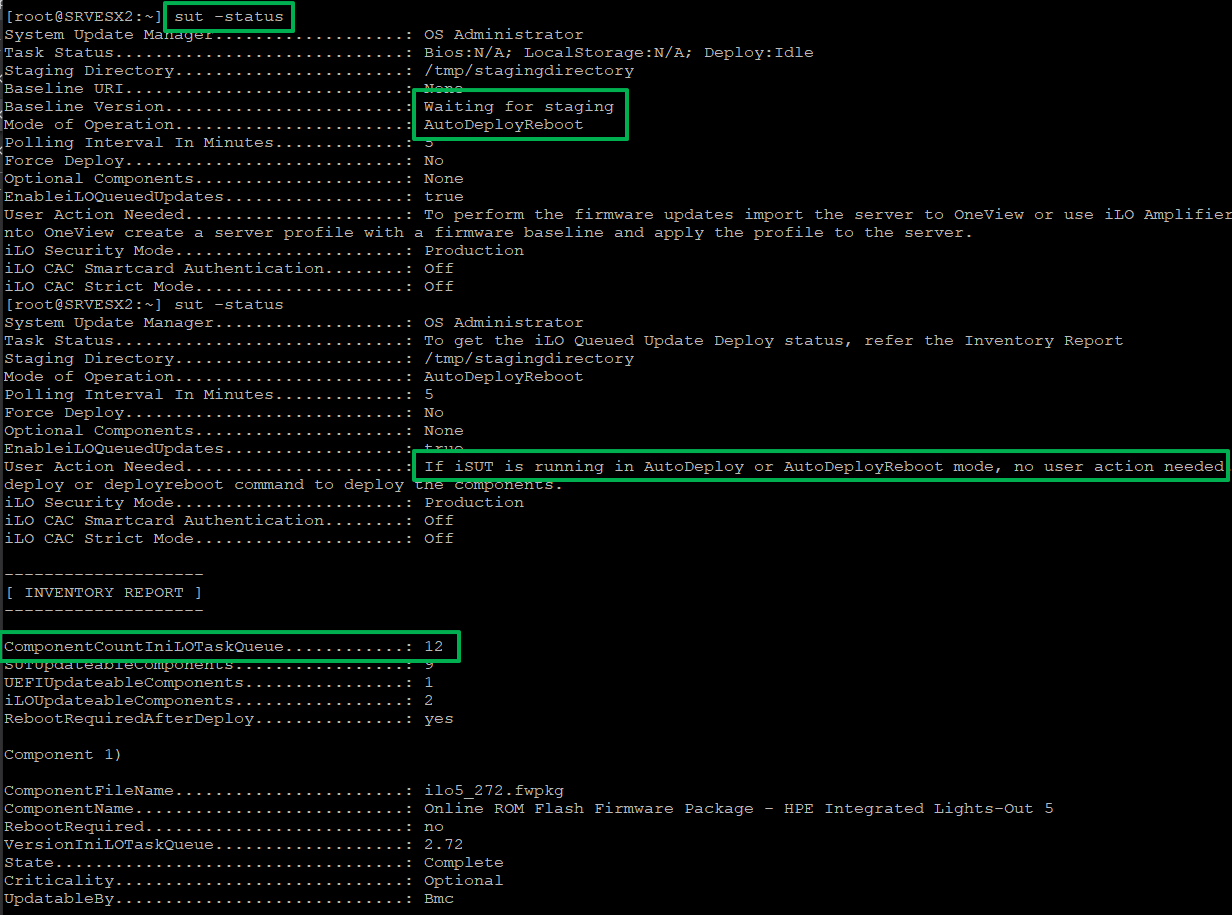
Now iSUT inside ESX (or Windows) should pick up the Driver:
Attention: Can be a long time until the Update starts, the default is 5 Min., don’t be nervous!
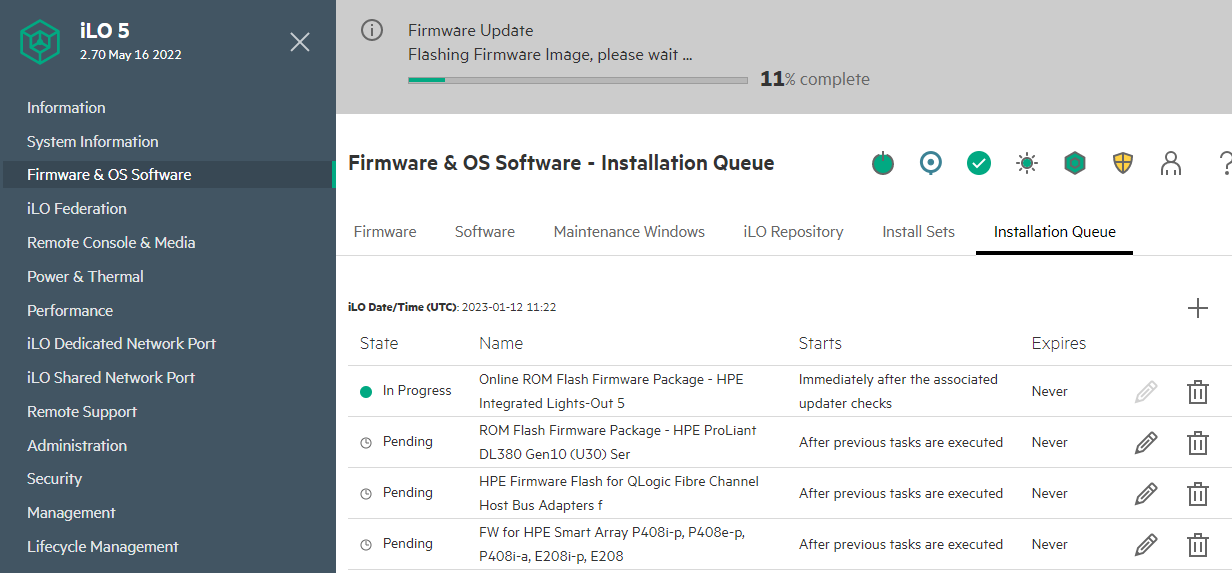
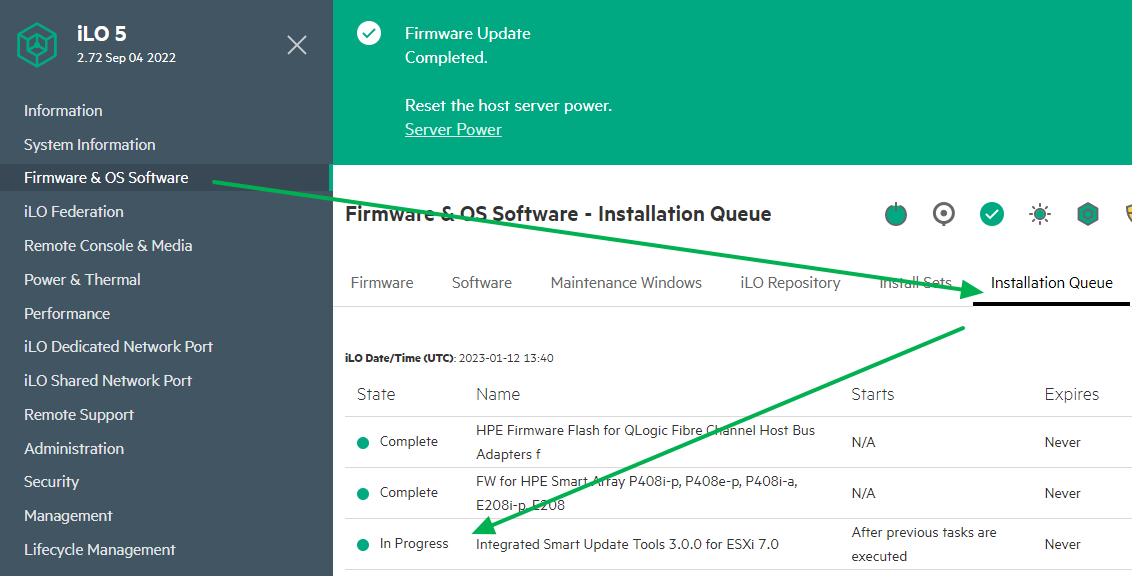
If you like, watch the Progress also here in iLO:
When everything is done, the Queue will be empty, and the Server reboots (If in Maintenance Mode).
During the Reboot, some post Firmware updates will be done (UEFI, PICs).
First, set the Host in Maintenance Mode. Than open a CLI connection to the ESXi and Enter:
esxcli system settings encryption get Mode: TPM Require Executables Only From Installed VIBs: false Require Secure Boot: false
Set Secure Boot to true with: esxcli system settings encryption set –require-secure-boot=T
Verify the change. esxcli system settings encryption get Mode: TPM Require Executables Only From Installed VIBs: false Require Secure Boot: true
To save the setting, run the following command: /bin/backup.sh 0
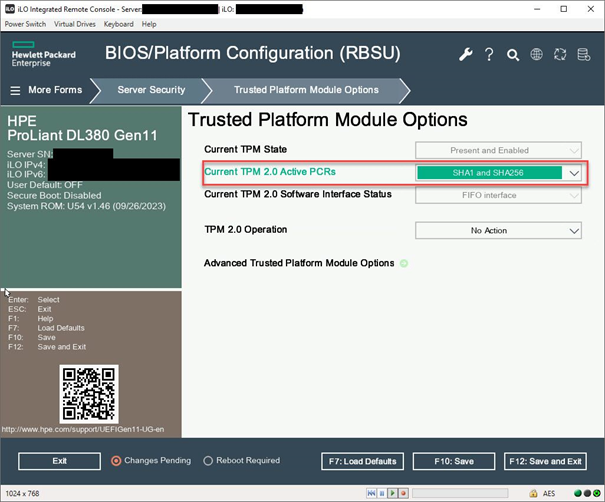
Now Reboot the Server and Enter the UEFI BIOS by pressing F9. Change TPM Settings in System Utilities screen, select System Configuration > BIOS/Platform Configuration (RBSU) > Server Security > Trusted Platform Module Options as here:
Annotation: VMware ESXi 7.0 cannot handle SHA386. SHA386 only works with VMware ESXi 8.0.
F12: Save and Exit for Reboot
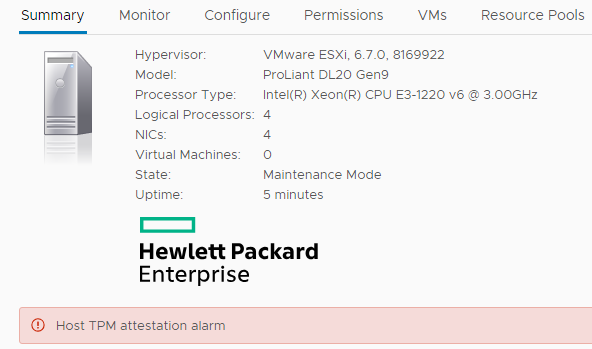
Maybe vCenter is now showing this
in that case, go back to CLI and enter esxcli system settings encryption recovery list
Save the output in a secure, remote location as a backup, in case you must recover the secure configuration. Now, Right-click on the alarm and select Reset to Green.
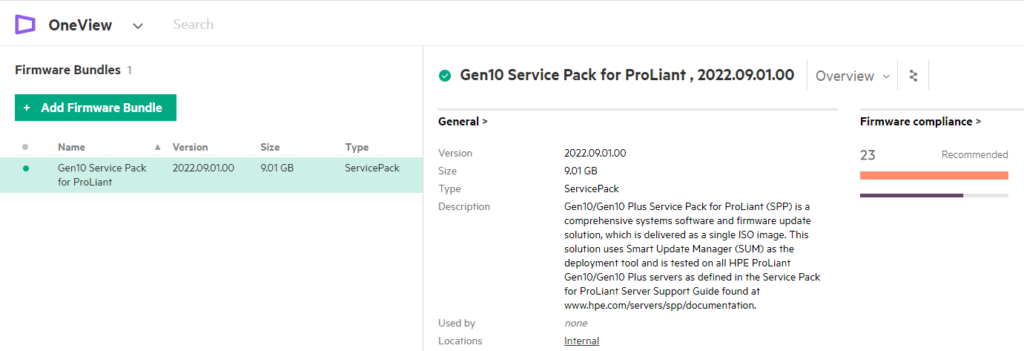
Silently OneView has introduced the installation of a Service Pack for ProLiant without the need for a Server profile.
And now withOneView 8.2 HPE going next Step toward the Customer and allowing the Firmware and Driver Update without the need to have a OneView License. Yes, having a free Monitoring only Version is good enough, this makes sense because the free iLO Amplifier offers the same Feature.
Time to show how we Update the Server with OneView, it’s so easy. 😊
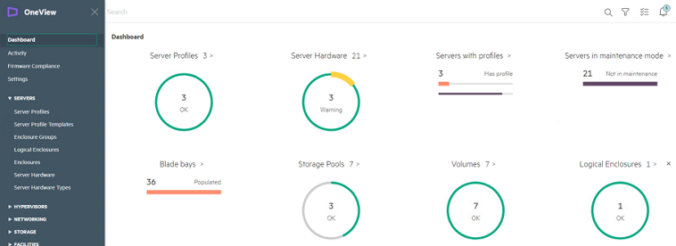
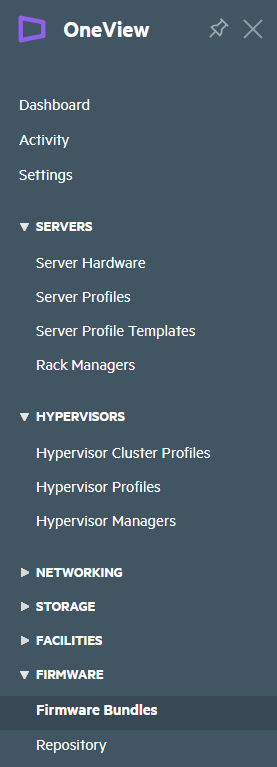
Let’s Start, login to OneView and choose Firmware Bundles on the bottom:
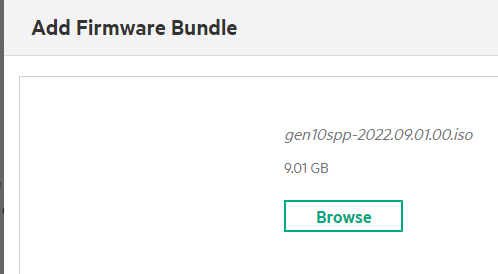
Here we have to Upload the Service Pack for ProLiant into the OneView Repository:
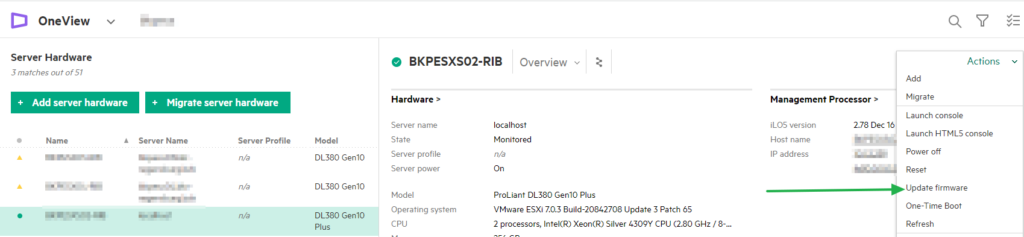
Now go back to the Server Hardware, select your Server(s) and choose Update Firmware under the Actions Menu:
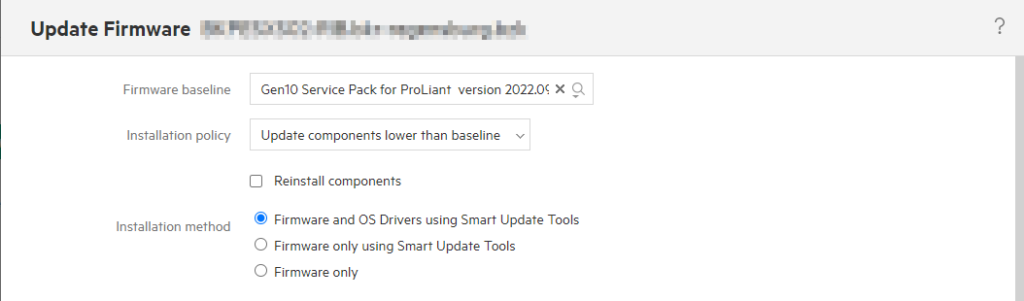
Select the Firmware Baseline and choose the Installation policy. With OV 8.2 we are able to deploy Firmware and OS Drivers if the Server has iLO 5 or newer. To deploy also the OS Driver, set the SUT Mode to AutoDeploy, as I describe here: HPE SPP Update with SUM and ESX
That’s all, the Update is now rolling out, OV will copy the needed Update Files to the iLO NVRAM, and then the Server will Install them locally. Some Updates still need a reboot.
Here I will guide you to Install the HPE Service Pack for ProLiant (SPP) using Software Update Manager (SUM) on VMware ESX Server. (Will work similarly with Windows Server also.)
Let’s begin now.
Start the ESX Shell and SSH on the ESX Server:
Optional: Set ESX into Maintenance Mode
Activate the HPE Software Update Tool (SUT): sut -set mode=AutoDeployReboot To Check: sut -status
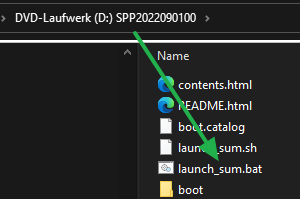
Mount or extract the Service Pack ProLiant ISO File and start with launch_sum.bat on any Windows PC or Server on the Network.
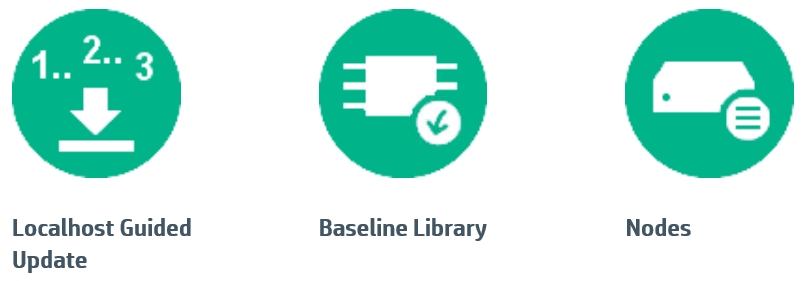
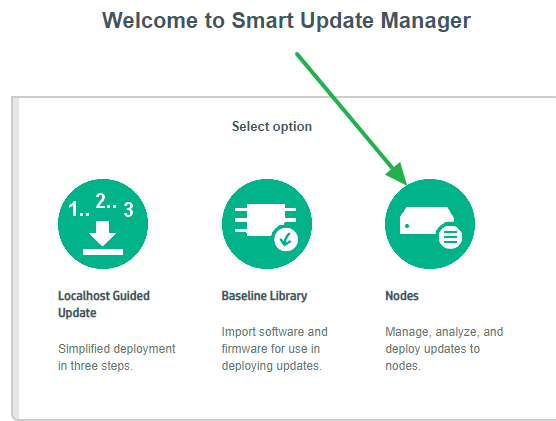
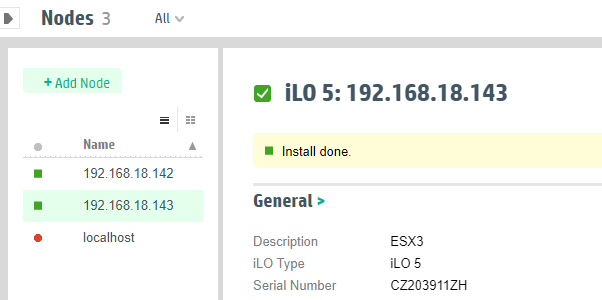
Start the Service Pack ProLiant on any Windows PC or Server in the Network and choose Nodes:
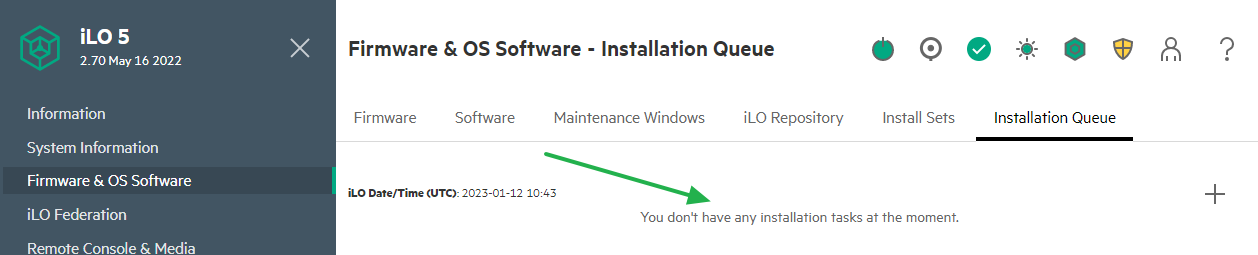
Login to the iLO Web GUI > The Installation Queue is empty
Now add the Server, since Gen10 (iLO5) Driver and Firmware were installed by iLO.
First, the Files were copied into the NVRAM of iLO.
Then the Installation Queue will be created.
Most of the Firmware is Installed direct.
For Driver, the SUT-Tool picks them from iLO and installs them in the OS.
If the Server is in Maintenance Mode, at the end an automatic reboot is triggered.
At the Reboot, Firmware is installed, which cannot be done Online.
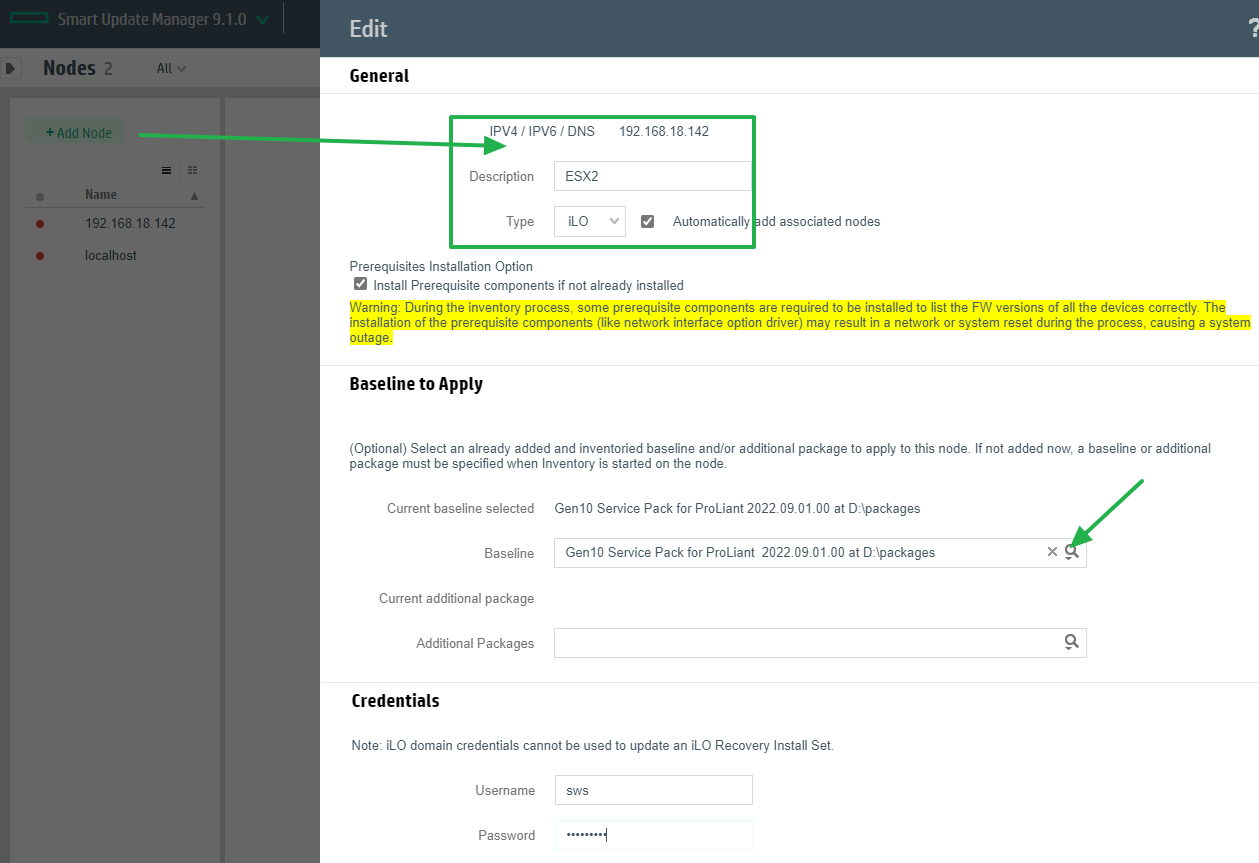
In SUM add the Server(s) by „Add Node„:
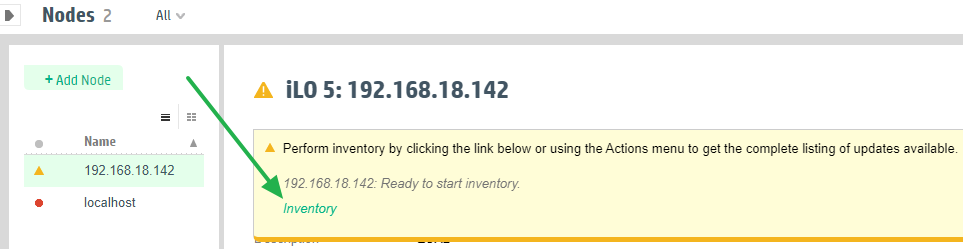
Start the Inventory:
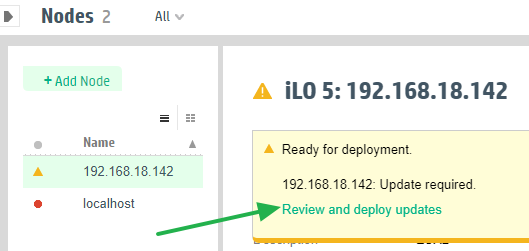
Now Deploy:
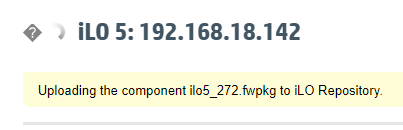
The Files will now be uploaded into the iLO NVRAM: (Take a ☕, this needs some time.)
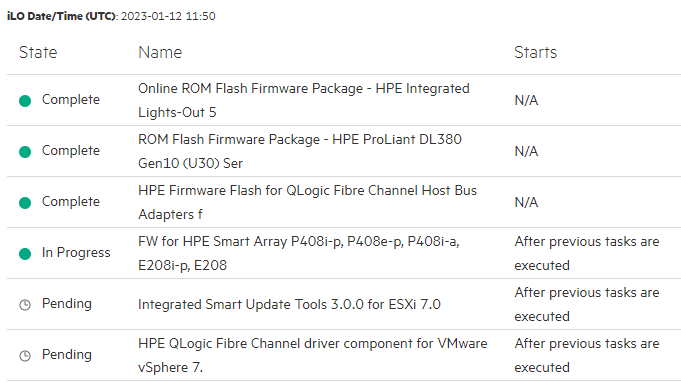
If everything is in the iLO Queue the Update starts:
At one Point Firmware of the iLO itself is being Updated, and then iLO is offline for some minutes.
Attention: Do not click here! Lay back and Drink your ☕.
Now SUT inside ESX (or Windows) should pick up the Driver:
Attention: Can be a long time until SUT starts, the default is 5 Min., don’t be nervous!
Watch the Progress here in iLO:
In the end, SUM says „Install done“, mostly it is only done for SUM.
Better to check in iLO for the state.
When everything is done, the Queue will be empty, and the Server reboots (If in Maintenance Mode).
During the Reboot, some Firmware updates will be done (UEFI, PICs).